

How to customize weight settings for Anomalies data
Use this guide to set your own minimum and maximum container weights. After you set them, BAPLIE Viewer Online checks each uploaded file against them. Containers outside your limits show as possible errors in the Anomalies tab.
- Log in to baplieviewer.com. The home page opens, with the Function Menu on the left.
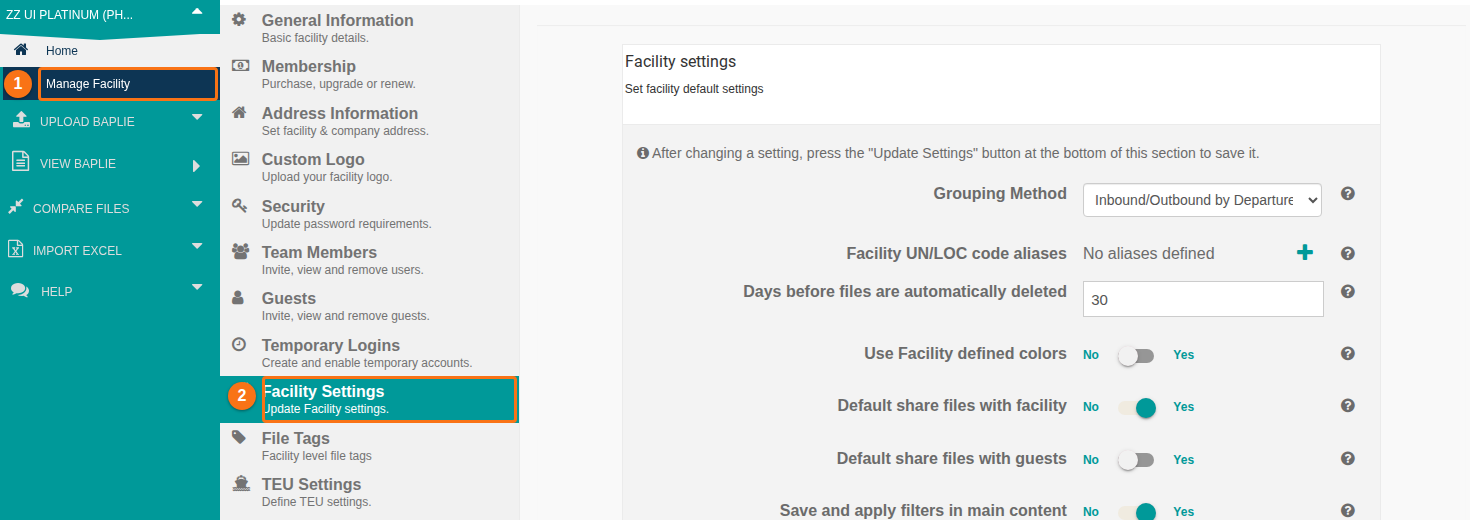
- If you are the administrator or the only user of your facility, click Manage Facility (1 in the picture). It is the first menu option, under the name of your facility.
- Click Facility Settings (2). These settings apply to all user accounts of the facility. They include the weight settings for anomalies.
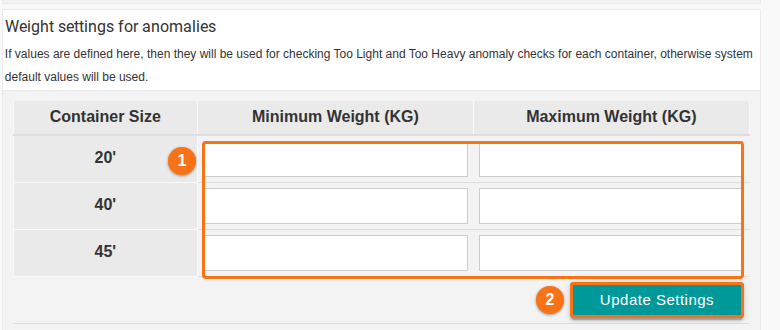
- Scroll down to the table Weight settings for anomalies.
- For each container size (20’, 40’, 45’), enter a Minimum Weight (KG) and a Maximum Weight (KG) (1 in the picture).
- Click Update Settings (2). The new limits apply to all files that members of your facility upload from now on.
Note: if you are not the administrator, click Facility Info, the first menu option. There you can set the weight settings for your own user account.
Check the result
Section titled “Check the result”- Open a file that you uploaded after you saved the limits.
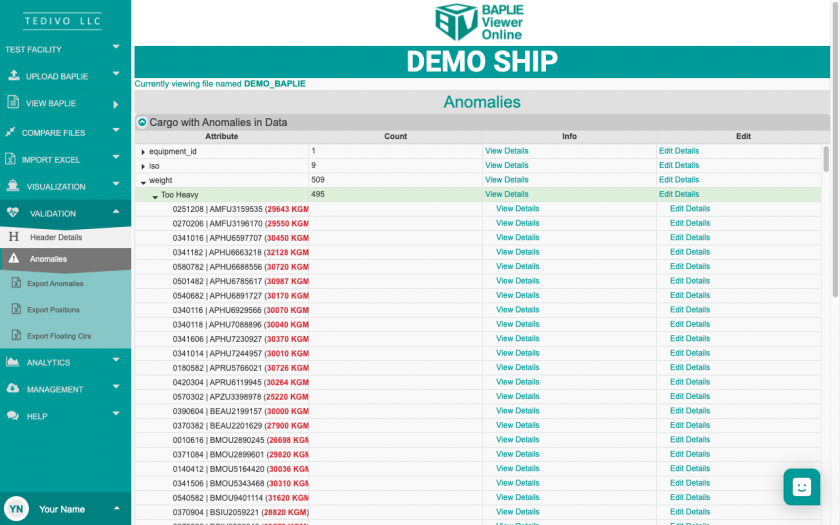
- In the Function Menu, click Validation, then click Anomalies.
- In Cargo with Anomalies in Data, click the small black triangle next to weight. Look at Too Light and Too Heavy. These groups use your limits. The picture shows Too Heavy (this picture comes from an older version of the screen).
System default limits
Section titled “System default limits”If you leave the table empty, the system uses these limits. BAPLIE Viewer Online checks every file when you upload it.
- Too Heavy: for 20’ containers, more than 23,995 kg or more than 52,900 lbs. For containers longer than 20’, more than 30,480 kg or more than 67,200 lbs.
- Zero Weight: the weight is 0.
- Missing Weight: the weight field is empty.
- Too Light: the weight is less than 1000 kg (less than 4 digits).
Your values are used only for the Too Light and Too Heavy checks.
For more about the Anomalies tab, see How to navigate the Anomalies option.