

How to export data to Excel
Use this guide to export the BAPLIE data of the Main Content table to an Excel file.
Before you start: upload a new file, or choose a file that you uploaded before.
- Wait for the Dashboard to load. It opens under Visualization in the Function Menu.
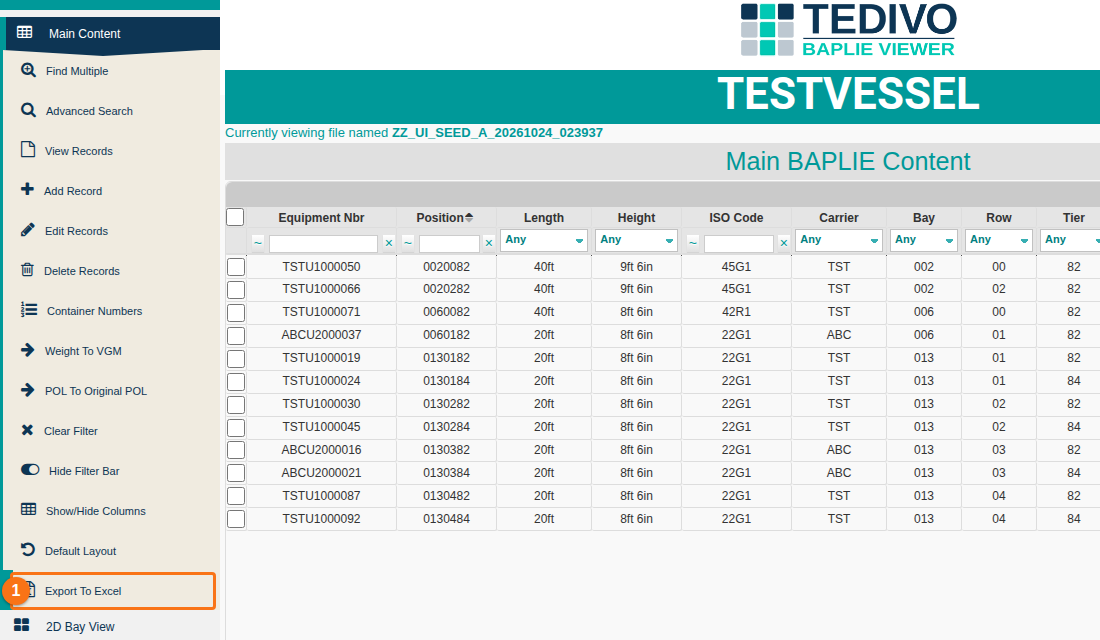
- In the Function Menu, click Main Content. The table of containers opens, and more options show in the Function Menu.
- Click Export To Excel (1 in the picture). You can do this at any time. The data on your screen is exported to an .xls file.
Good to know
Section titled “Good to know”- If a filter is on, only the filtered data is exported.
- If you changed which columns are visible in the table, only the visible columns are exported.