

How to create a BAPLIE file from scratch
There is no Create BAPLIE file option, because most customers start with an existing BAPLIE file. You can still create a new BAPLIE file from scratch. Use the Import Excel function and the 2D View, as shown below.
- Make an Excel spreadsheet with the base information of one container and the position
9999999. Or download the ready file BVO-Demo-BLANK.xlsx. - Import the file with the Import Excel function. For details, see How to create a BAPLIE file from an Excel spreadsheet.
- Fill in the base information for the file (the Header Details).
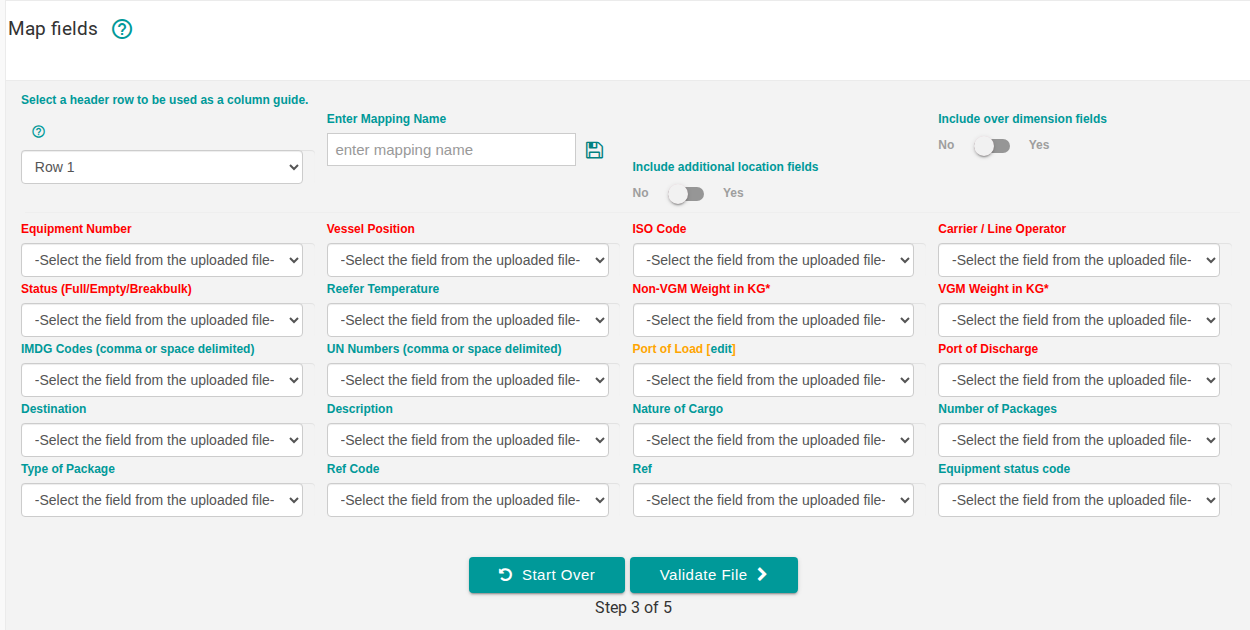
- Map the fields to the spreadsheet. For each BAPLIE field, choose a column of your spreadsheet in the drop-down list. The picture shows the Map fields step.
-
Click Validate File. When the validation passes, upload the file and open it.
-
Go to the 2D View.
-
Set the size of the vessel:
- If the file has no valid positions, the 2D View asks you to set the vessel dimensions.
- Otherwise, set Mode to Dimensions (1 in the picture). Then click Change Vessel Dimensions & OVDs (2 in the picture).
For details, see How to change the vessel dimensions.

- Set Mode to Move to load new containers onto the vessel. For details, see How to use the move containers feature in 2d bay view.
Note: the Move mode may not be available for every membership type.