

How to link your facility to TEDIVO Vessel Designer
Use this guide to link your facility to a TEDIVO Vessel Designer (TVD) organization. You do this with a TVD API key. After the link, you can send the data of your BAPLIE files from 2D Bay View to TEDIVO Vessel Designer, to create or update a vessel definition.
Before you start:
- Your facility needs a Platinum membership. TEDIVO Vessel Designer integration is available on Platinum accounts only.
- You must be an administrator of the facility.
- Have your TVD API key ready. It belongs to your TEDIVO Vessel Designer organization.
Save the TVD API key
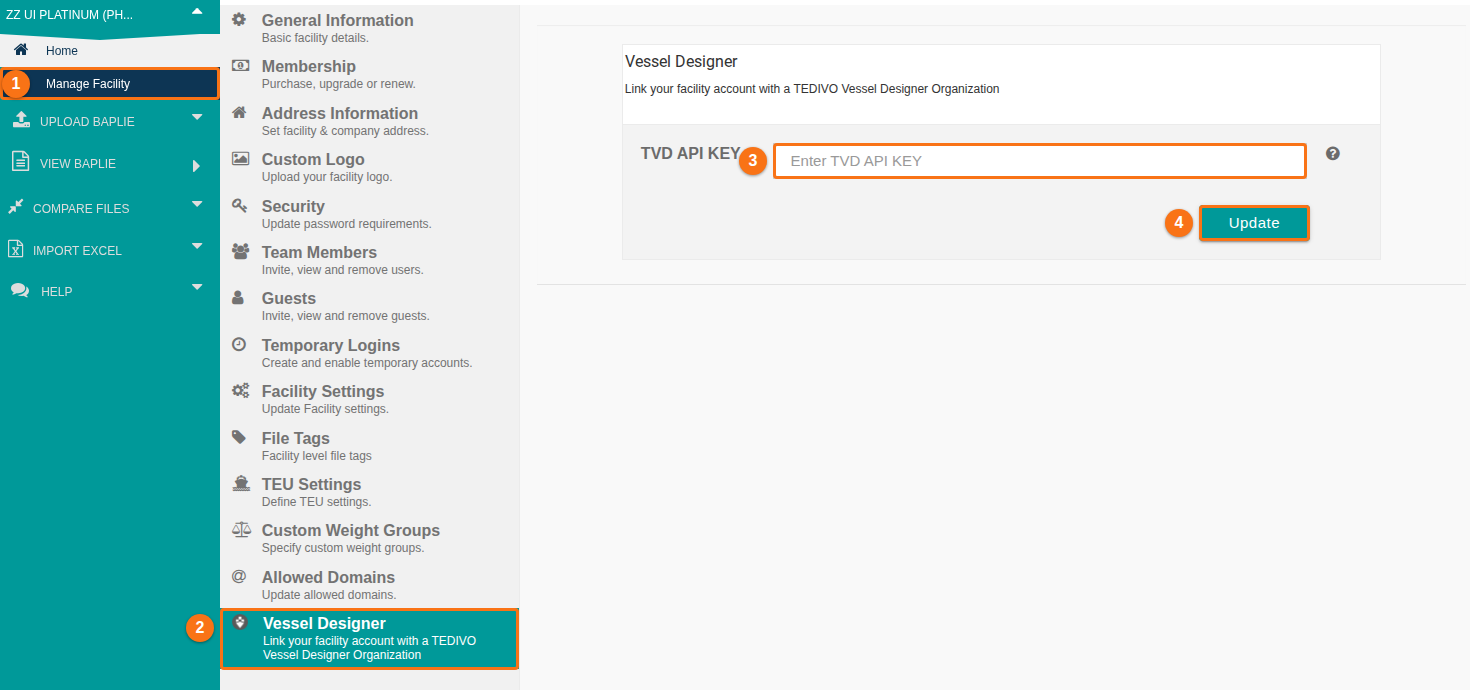
Section titled “Save the TVD API key”- In the Function Menu on the left, click Manage Facility under the name of your facility (1 in the picture).
- Click the Vessel Designer tab (2 in the picture). Its text is Link your facility account with a TEDIVO Vessel Designer Organization.
- Click the box TVD API KEY (3 in the picture). It says Enter TVD API KEY. Paste your key.
- Click Update (4 in the picture).
- A window SYSTEM RESPONSE opens. It says API key updated. Click Close.
If the save does not work, the window says Failed to update API key. Try again. If it fails again, see How to contact Support and create a support ticket.
Note: the application saves the text as you typed it. It does not check the key at this step. It checks the key when you send data to TEDIVO Vessel Designer (see below).
If you do not have a Platinum membership
Section titled “If you do not have a Platinum membership”The Vessel Designer tab shows the heading Platinum feature and this text: “TEDIVO Vessel Designer integration is available on Platinum accounts only. Please upgrade to Platinum to add a TVD API key.” The TVD API KEY box and the Update button do not work. To upgrade, see How to purchase a membership using a credit card.
If the Manage Facility page has no Vessel Designer tab, contact Support.
Send BAPLIE data to TEDIVO Vessel Designer
Section titled “Send BAPLIE data to TEDIVO Vessel Designer”Before you start: save your TVD API key as shown above. Open your file.
- In the Function Menu, open Visualization and click 2D Bay View.
- In the Mode list at the top of the screen, choose Dimensions (1 in the picture).
- Click Create/Update Vessel Definition from BAPLIE data (2 in the picture).

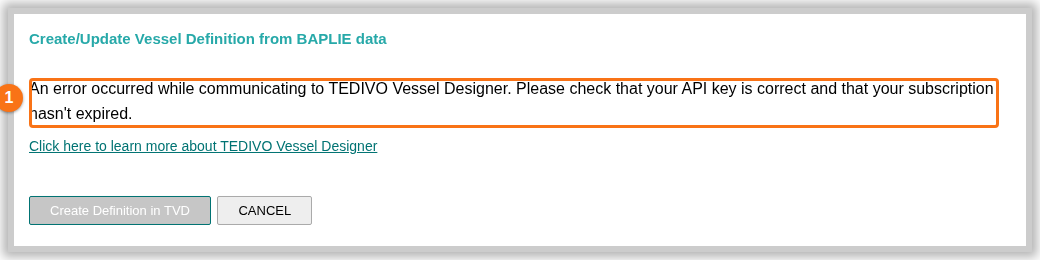
- A window with the same title opens. It has the buttons Create Definition in TVD and CANCEL, and a link Click here to learn more about TEDIVO Vessel Designer.
- Click Create Definition in TVD.
To cancel: click CANCEL. Nothing is sent.
The application builds the data from your BAPLIE files that have the same vessel name as the vessel you have open. For each container position it uses the position, the length of the container and whether the position holds a reefer.
If you see an error
Section titled “If you see an error”When the application cannot reach TEDIVO Vessel Designer, the window shows this message:
An error occurred while communicating to TEDIVO Vessel Designer. Please check that your API key is correct and that your subscription hasn’t expired.
- Click CANCEL.
- Go back to Manage Facility and Vessel Designer. Check the key in TVD API KEY. Paste the key again and click Update.
- Check that your TEDIVO Vessel Designer subscription is active.
- Send the data again.
Good to know
Section titled “Good to know”- Only administrators of the facility can save the key. The key belongs to the facility, so it applies to all users of the facility.
- To remove the link, delete the text in TVD API KEY and click Update. The window says API key updated.
- Treat the key like a password. Do not send it in a support message.
- For the vessel size values in 2D Bay View, see How to change the vessel dimensions.