

How to view individual records
Use this guide to see the details of one container, or of several containers, in your BAPLIE file. You can also look at all the data of the file together in the table.
Before you start: upload a file and open it.
- In the Function Menu, open Visualization and click Main Content. The table with the file content opens.
- Use a query or a filter to find the containers that you want to look at.
- Click the check box at the start of each row that you want to see.
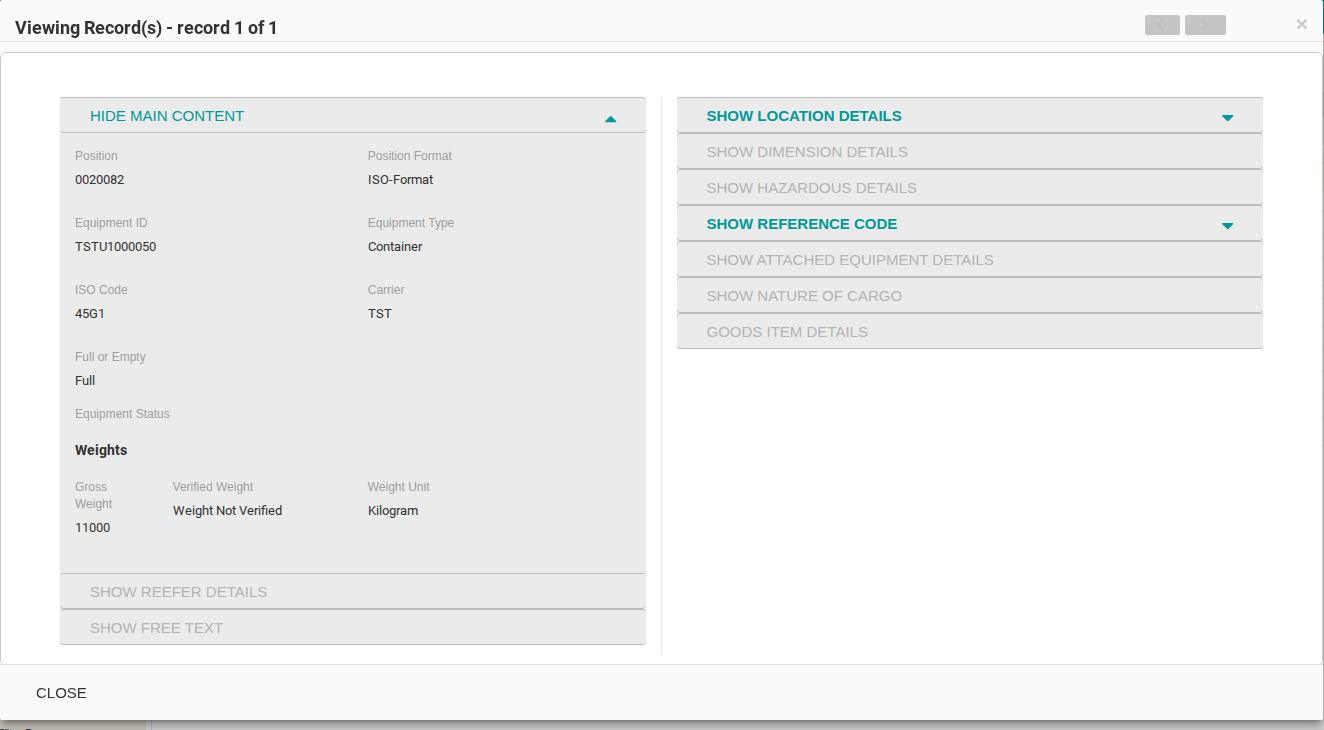
- In the Function Menu, click View Records. The Viewing Record(s) window opens and shows the details of the record.
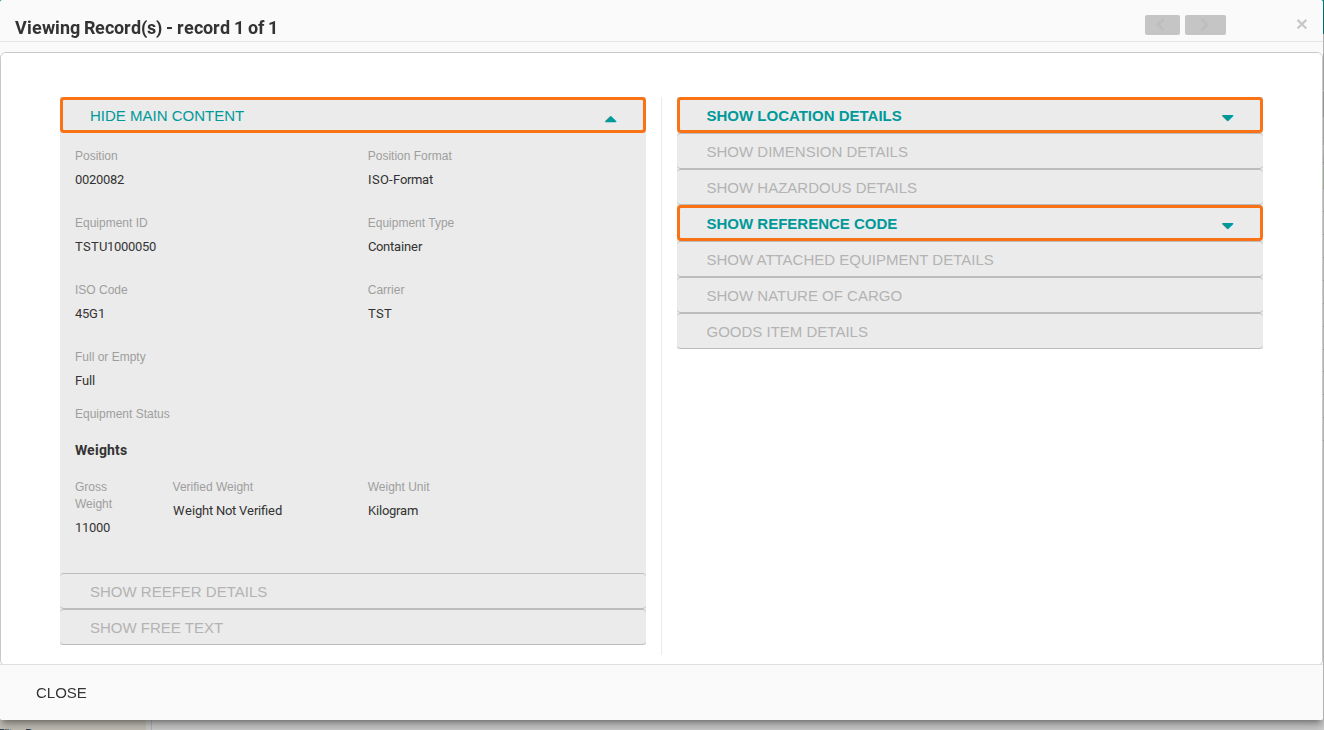
- To see more details, open a section. Sections that have more information are shown in teal. Sections that have no more information are grey. Click the section bar or its arrow to open or close the section. The picture shows three sections outlined in orange: HIDE MAIN CONTENT, SHOW LOCATION DETAILS and SHOW REFERENCE CODE.
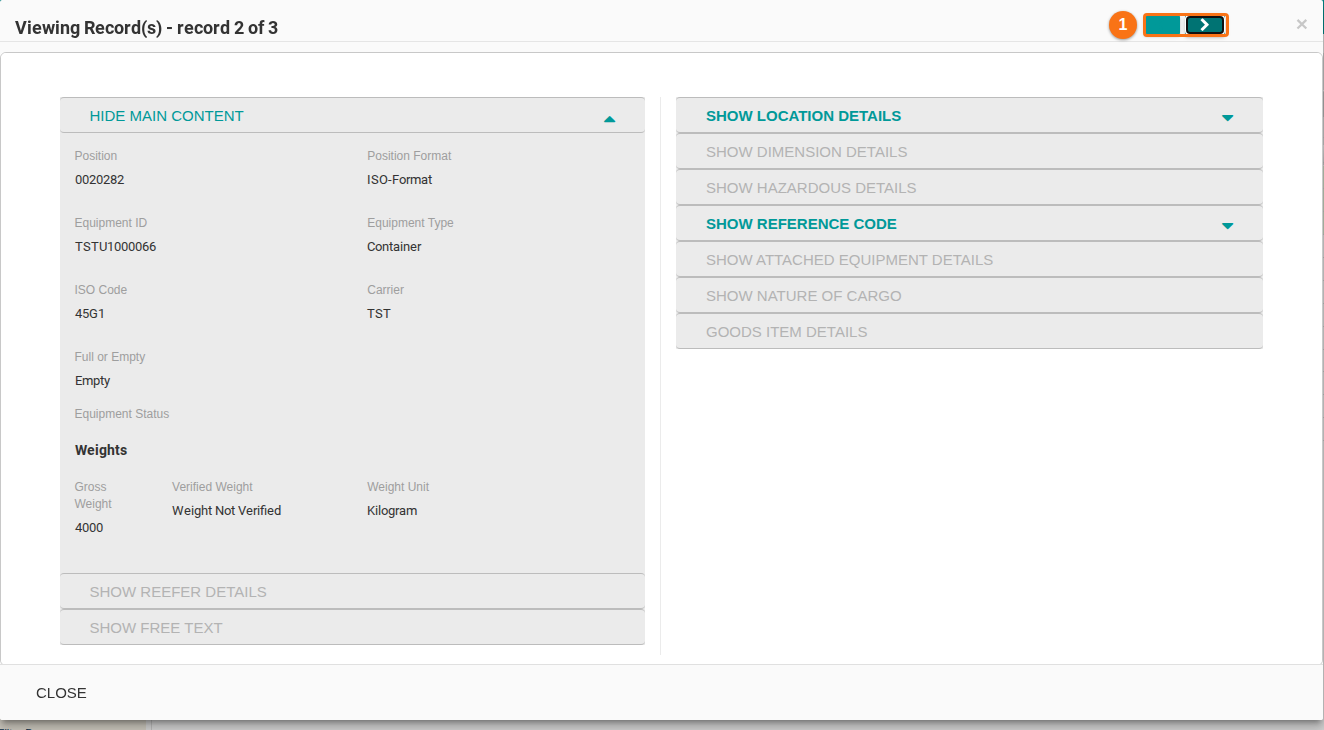
- If you selected more than one record, use the arrows at the top of the window (1 in the picture) to move between the records. The title shows which record you see, for example record 2 of 3.
- Click CLOSE at the bottom left of the window when you finish.
Note: the window shows only the attributes that are visible in the table.