

How to edit one or more containers in 2D View
Use this guide to change the details of one or more containers in 2D Bay View. You use Edit mode to do this. You can change any detail of the container data in your uploaded BAPLIE file.
Before you start: open your file. You need the Edit permission for the file.
Open Edit mode
Section titled “Open Edit mode”- After you upload a file on baplieviewer.com, open Visualization in the Function Menu on the left. Click 2D Bay View. A new tab opens with a picture of your BAPLIE data.
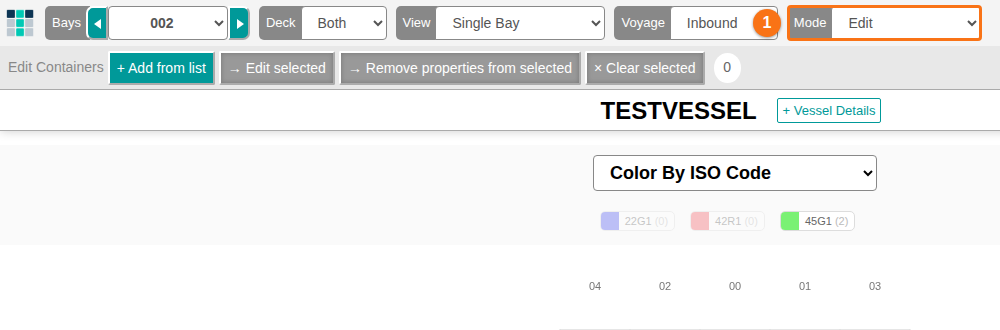
- Look at the menu bar at the top of the screen. The first bay of the file shows, and Mode is View.
- In the Mode list (1 in the picture), choose Edit. These buttons show below the menu bar: Add from list, Edit selected, Remove properties from selected and Clear selected.
Edit one container
Section titled “Edit one container”- Find the bay with the container. Use the Bays list or the arrows next to it. Or type the container ID in the box at the top right and press Enter. The screen goes to that container.
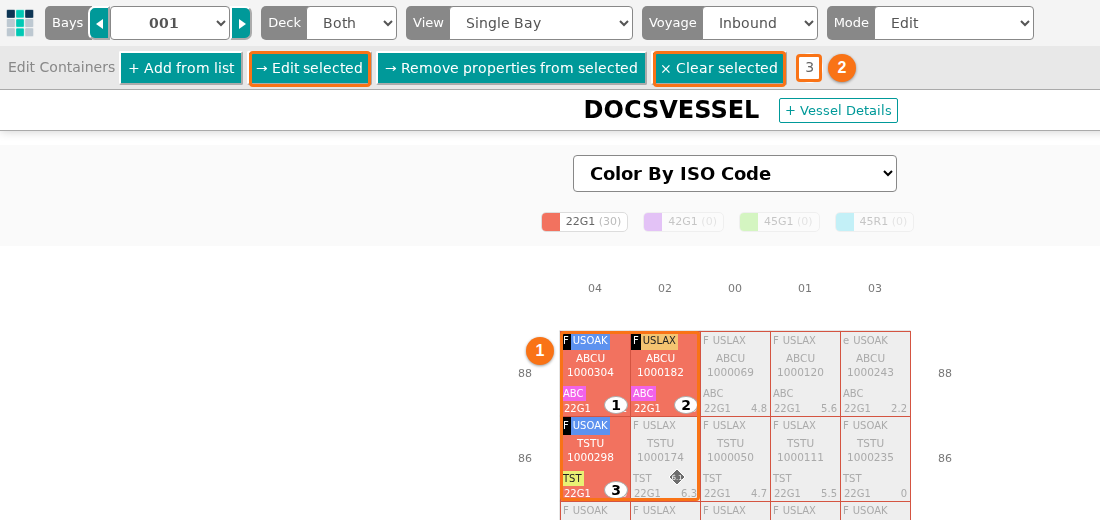
- Click the container you want to edit. The Edit selected and Clear selected buttons become active (boxed in the picture). All other containers turn grey. The number next to the buttons shows how many containers are selected (2 in the picture). The selected containers get a number in the bay (1 in the picture). The picture shows three selected containers. With one container, the number is 1.
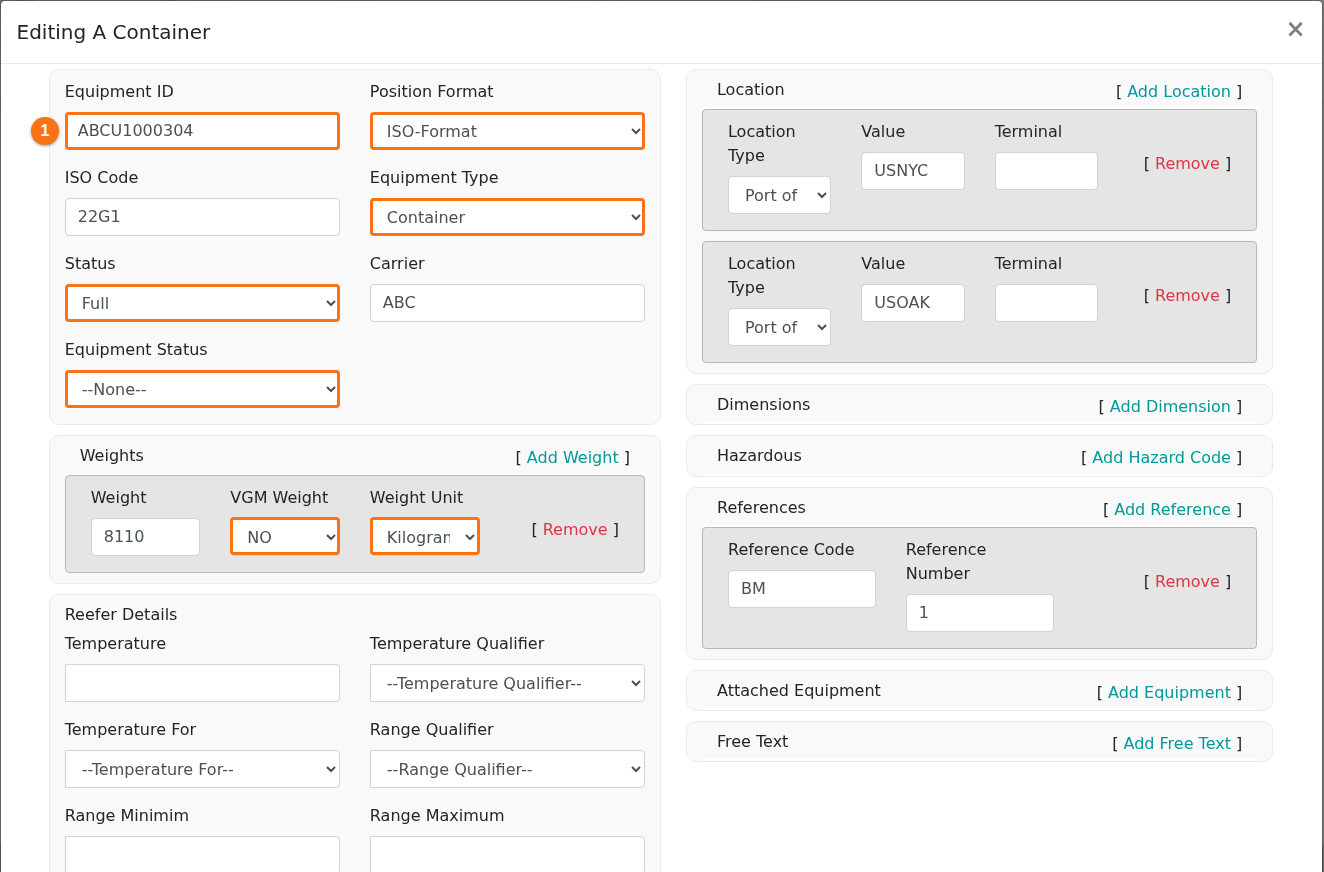
- Click Edit selected. The Editing A Container window opens with the fields of the container. Equipment ID is the first field (1 in the picture). A field that has only fixed values is a list (drop-down). The picture boxes the lists. The right side has more sections, for example Location, Hazardous and References.
- Change the values you need.
- Click Save Changes at the bottom of the window to save.
To cancel: click Close at the bottom of the window. Your changes are not saved.
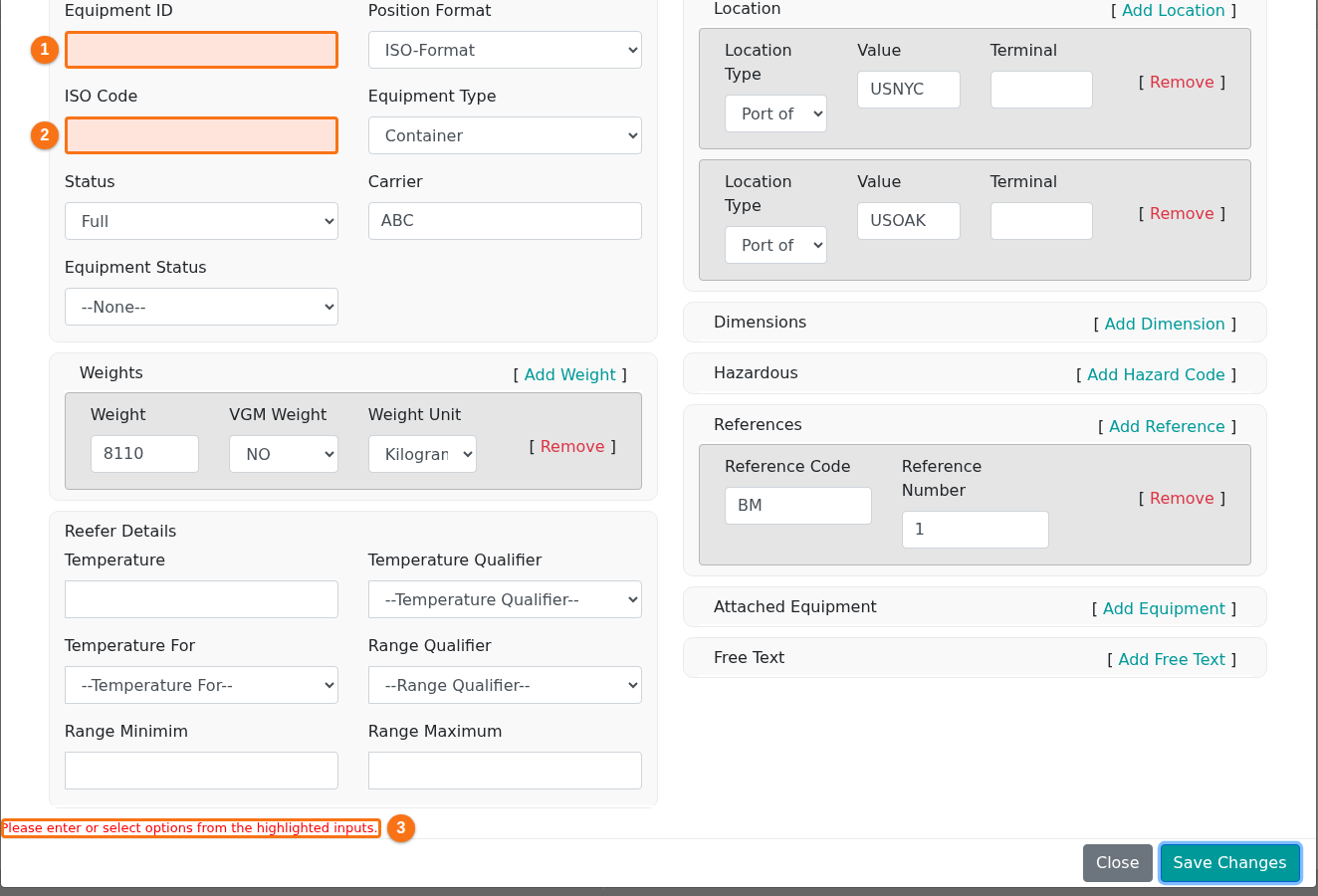
If a required field is empty, it turns pink (1 and 2 in the picture). A message at the bottom of the window says “Please enter or select options from the highlighted inputs.” (3 in the picture). The changes are not saved until you fill in the empty fields.
Edit many containers at the same time
Section titled “Edit many containers at the same time”You can change a group of containers at once. The changes are saved for all of them together.
- Click each container you want to change. The Edit selected and Clear selected buttons become active. All other containers turn grey.
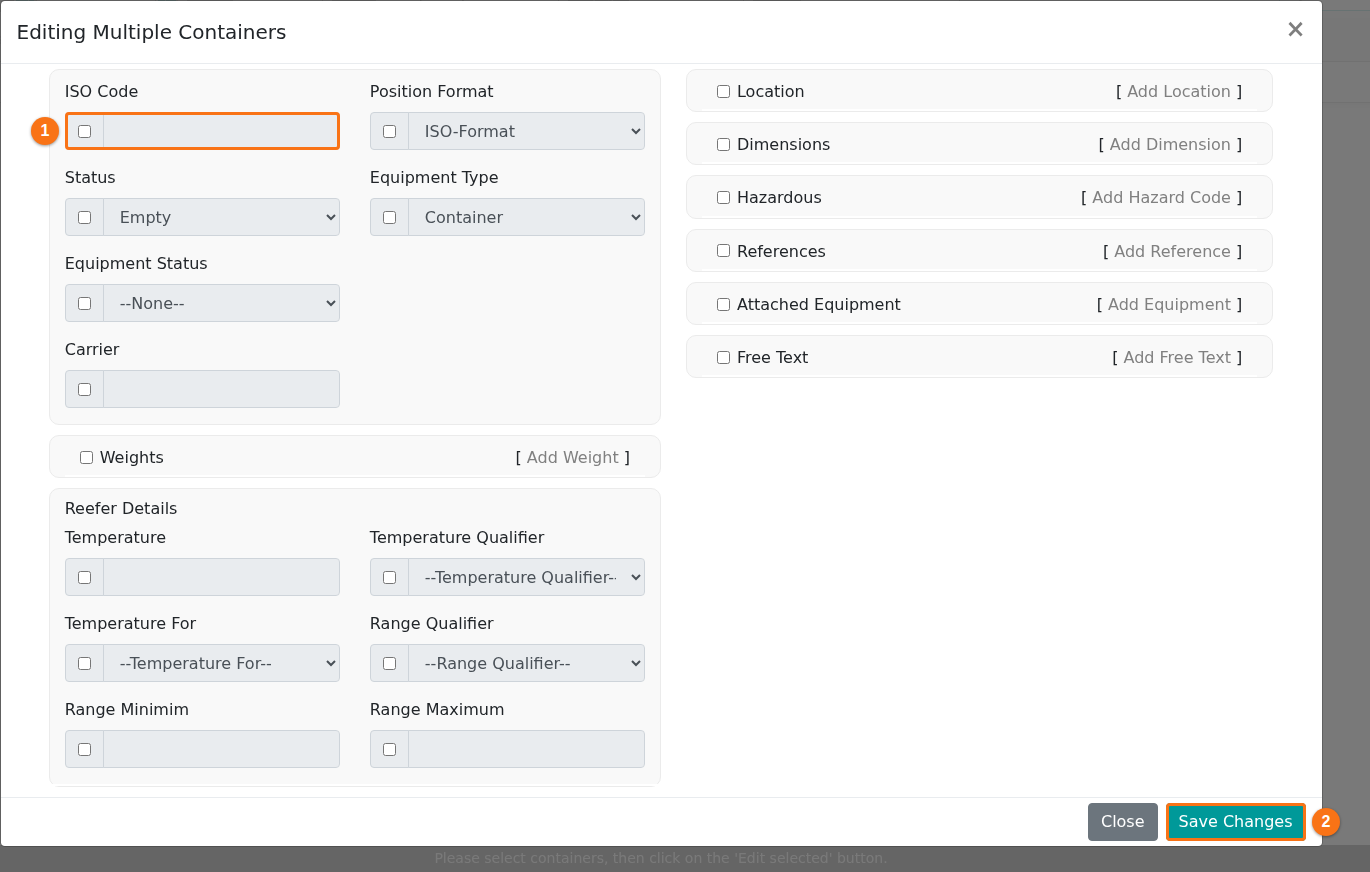
- Click Edit selected. The Editing Multiple Containers window opens. Each field has a checkbox on its left (1 in the picture). The fields are grey until you tick the checkbox. Save Changes (2 in the picture) is at the bottom right.
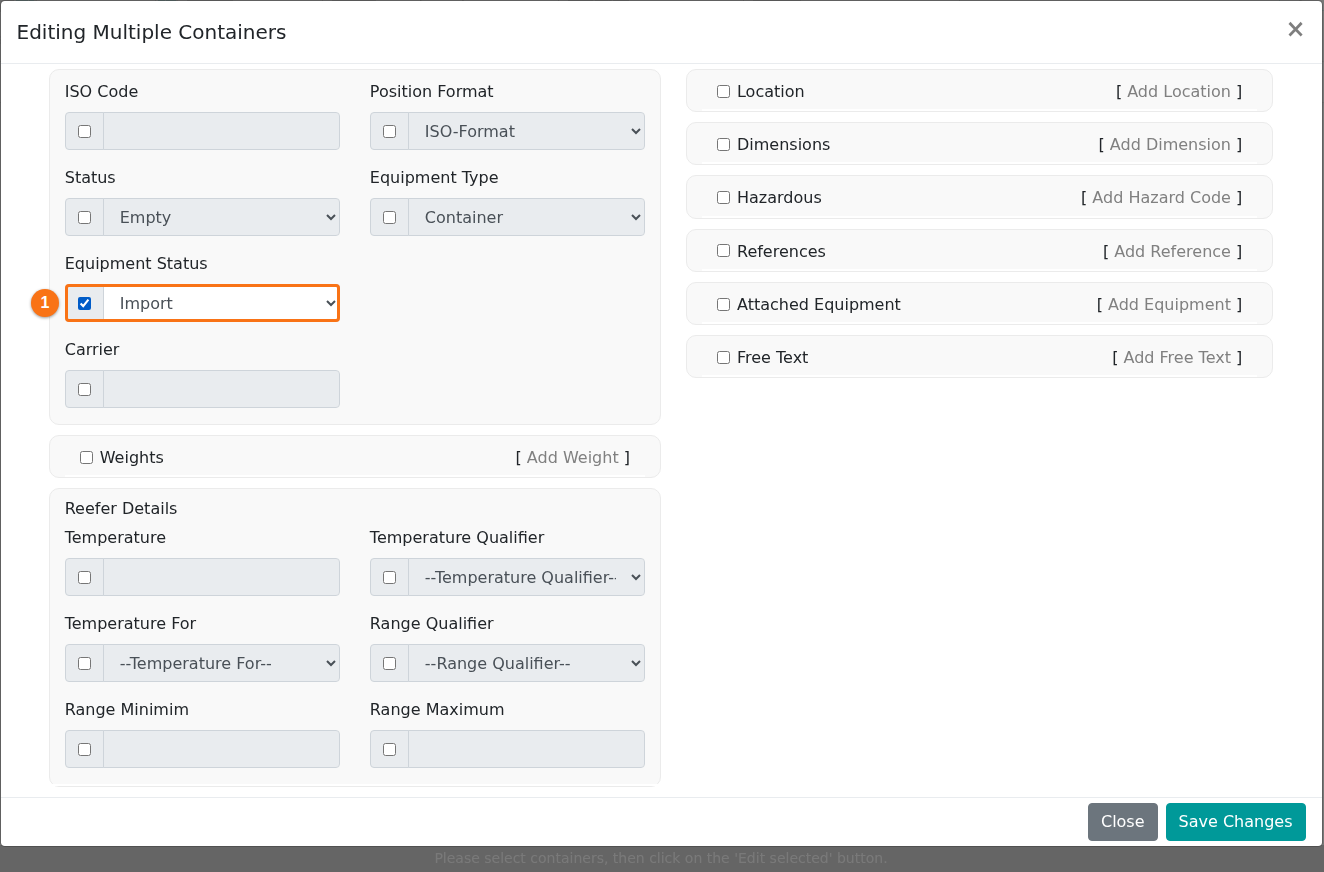
- Tick the checkbox at the left of each field you want to change. The field becomes editable. A field that has only fixed values is a list (drop-down). In the picture, the checkbox of Equipment Status is ticked and the value Import is chosen (1 in the picture).
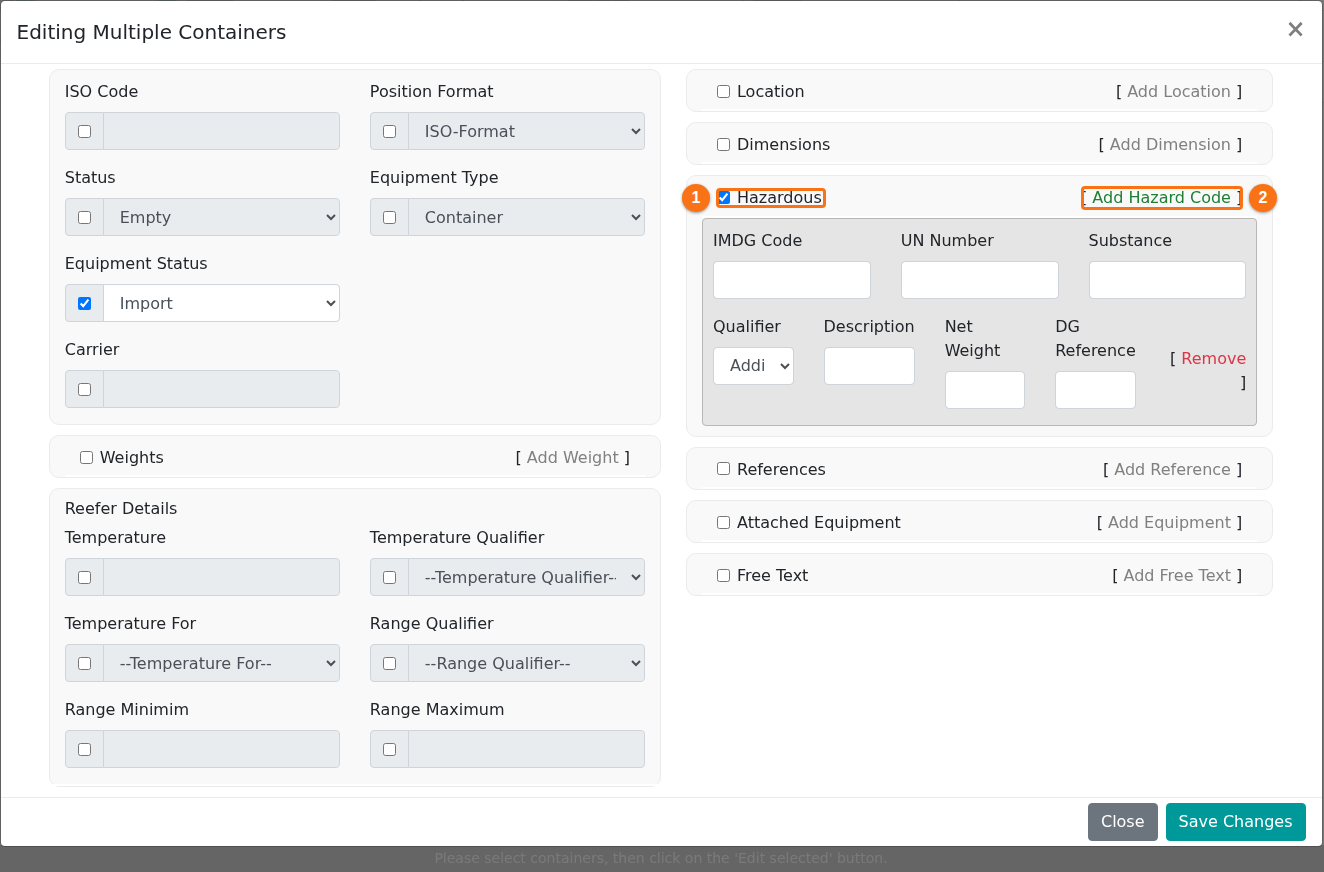
- For a section such as Hazardous, tick the checkbox of the section first (1 in the picture). Then click the green link next to it, here Add Hazard Code (2 in the picture). Boxes open where you can enter more information: IMDG Code, UN Number, Substance, Qualifier, Description, Net Weight and DG Reference.
- Click Save Changes at the bottom of the window.
Note: only the fields with a ticked checkbox change, and they change for all selected containers. All other fields keep their values.