How to view a specific bay in 3D while in 2D Bay View
Use this guide to look at one bay in the 3D model while you are in the 2D Bay View.
- In the Function Menu, open Visualization and click 2D Bay View.
- Make sure Mode is View.
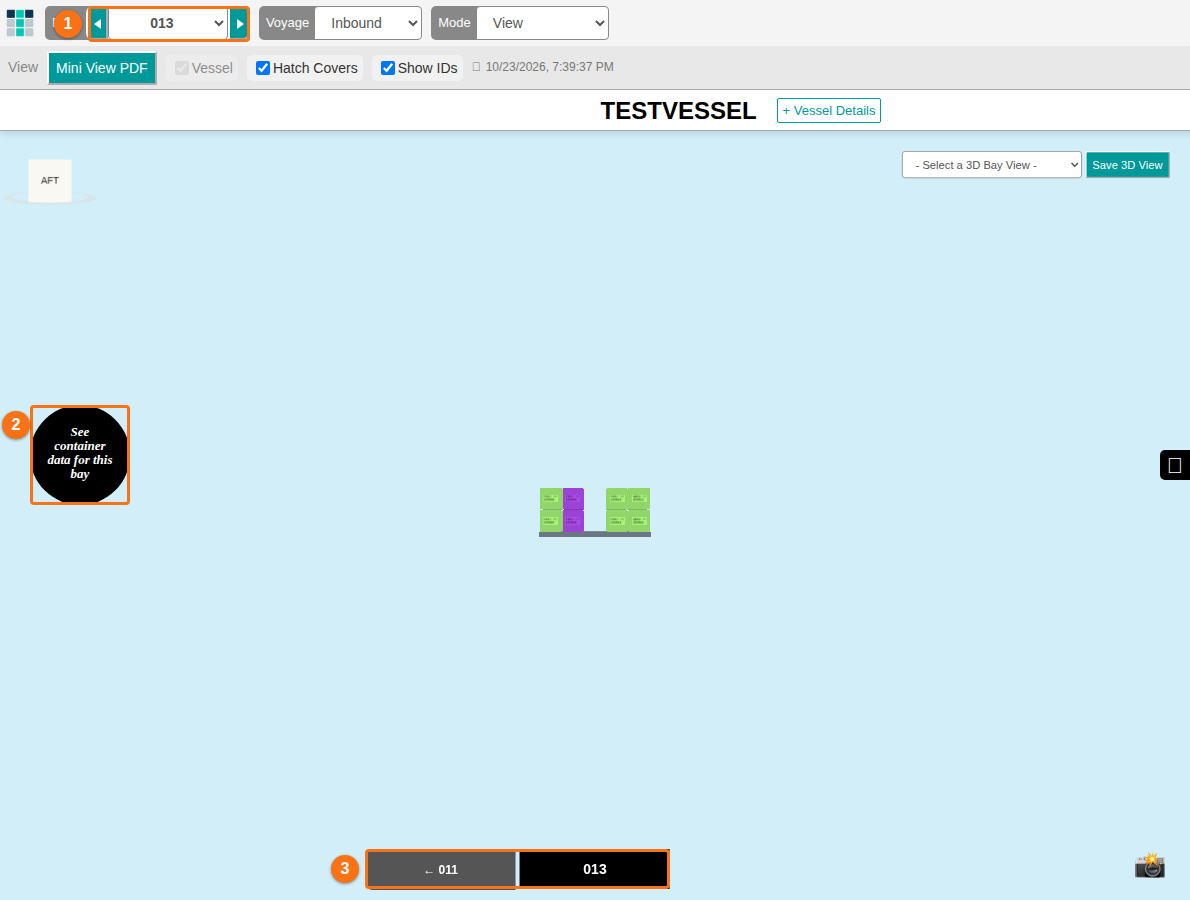
- In the Bays drop-down, choose the bay that you want to see. The picture shows bay 002.
- Click View Bay in 3D. It is in the options row at the top of the page. A new browser tab opens and loads the bay in 3D.

- To see container details of the bay, click the black circle on the left side of the screen (2 in the picture). The text on the circle is See container data for this bay.
- To see another bay, use one of these ways:
- Click a bay number button at the bottom of the 3D screen (3 in the picture).
- Use the bay drop-down at the top of the screen (1 in the picture).