How to use the Move Containers feature in 2D Bay View
Use this guide to move containers in 2D Bay View and update the BAPLIE data to match. You can load new containers, load generic empties (empty containers with general details), unload containers and re-stow containers (move them to a new position).
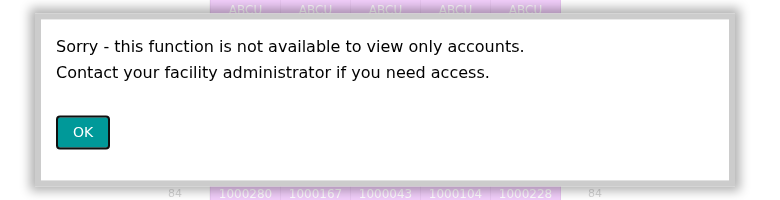
Before you start: open your file. Move mode needs the Vessel Operations add-on for your facility (it shows as Vessel Operations Enabled in the facility general information). You also need Admin or Edit permission. Gold members cannot use Move. A view-only user sees the message Sorry - this function is not available to view only accounts. and must ask the facility administrator for access. Click here to learn about membership types and how to upgrade your membership.
Open Move mode
Section titled “Open Move mode”- After you upload a file on baplieviewer.com, open Visualization in the Function Menu on the left. Click 2D Bay View. A new tab opens with a picture of your BAPLIE data.
- In the menu bar at the top, the Mode list (1 in the picture) shows View. Choose Move.
- A row of buttons shows below the top bar (2 in the picture): Load New, Load Generic Empties, Unload, Re-Stow, Shift-On-Board, Correct Position and Print Bay Plan. Load New and Load Generic Empties are active at the start. The other buttons become active when you select containers.
- The Containers to move list shows on the right. It is empty at the start.

This guide describes Load New, Load Generic Empties, Unload and Re-Stow. To print a plan of the selected containers, see How to print a sequence bay plan from 2D View. To fix containers with wrong positions, see How to use the Correct Positions Feature. This guide does not describe Shift-On-Board.
Load new containers
Section titled “Load new containers”You can add new containers to the current BAPLIE file in two ways. You can enter the data yourself, or you can use data from another BAPLIE file that you uploaded.
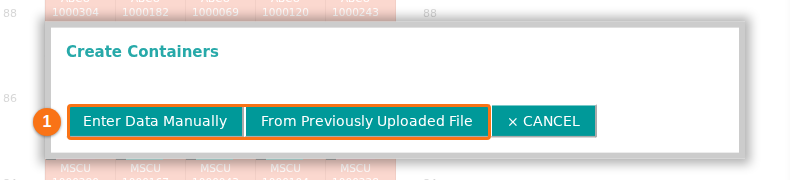
- Click Load New. The Create Containers window opens. It has the buttons Enter Data Manually and From Previously Uploaded File (1 in the picture).
Enter the data yourself
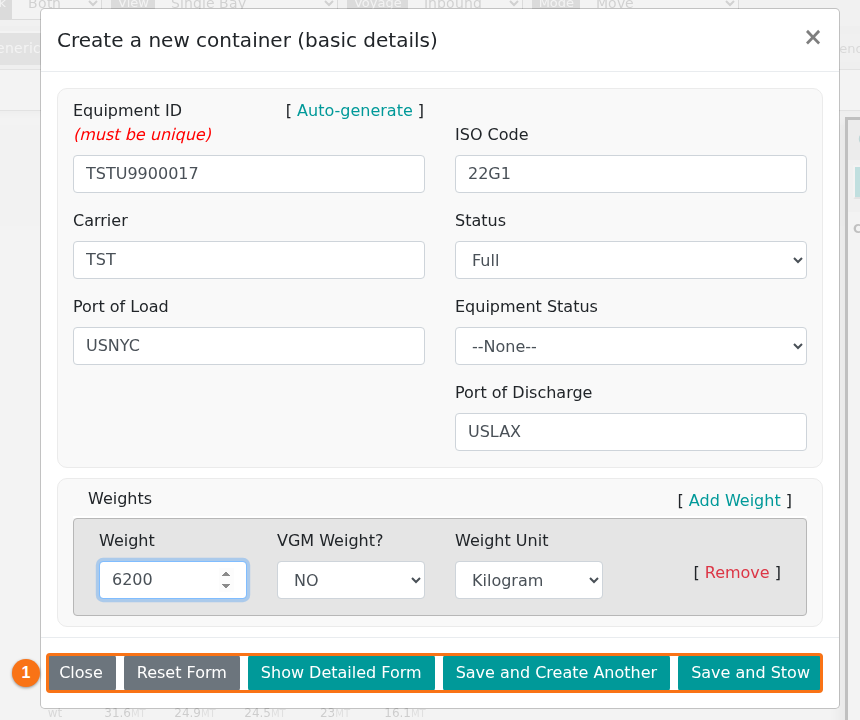
Section titled “Enter the data yourself”- Click Enter Data Manually. The basic version of the form opens. Its title is Create a new container (basic details). The Equipment ID must be unique. The Auto-generate link next to this field can fill in an ID for you. The form has these buttons at the bottom (1 in the picture): Close, Reset Form, Show Detailed Form, Save and Create Another and Save and Stow.
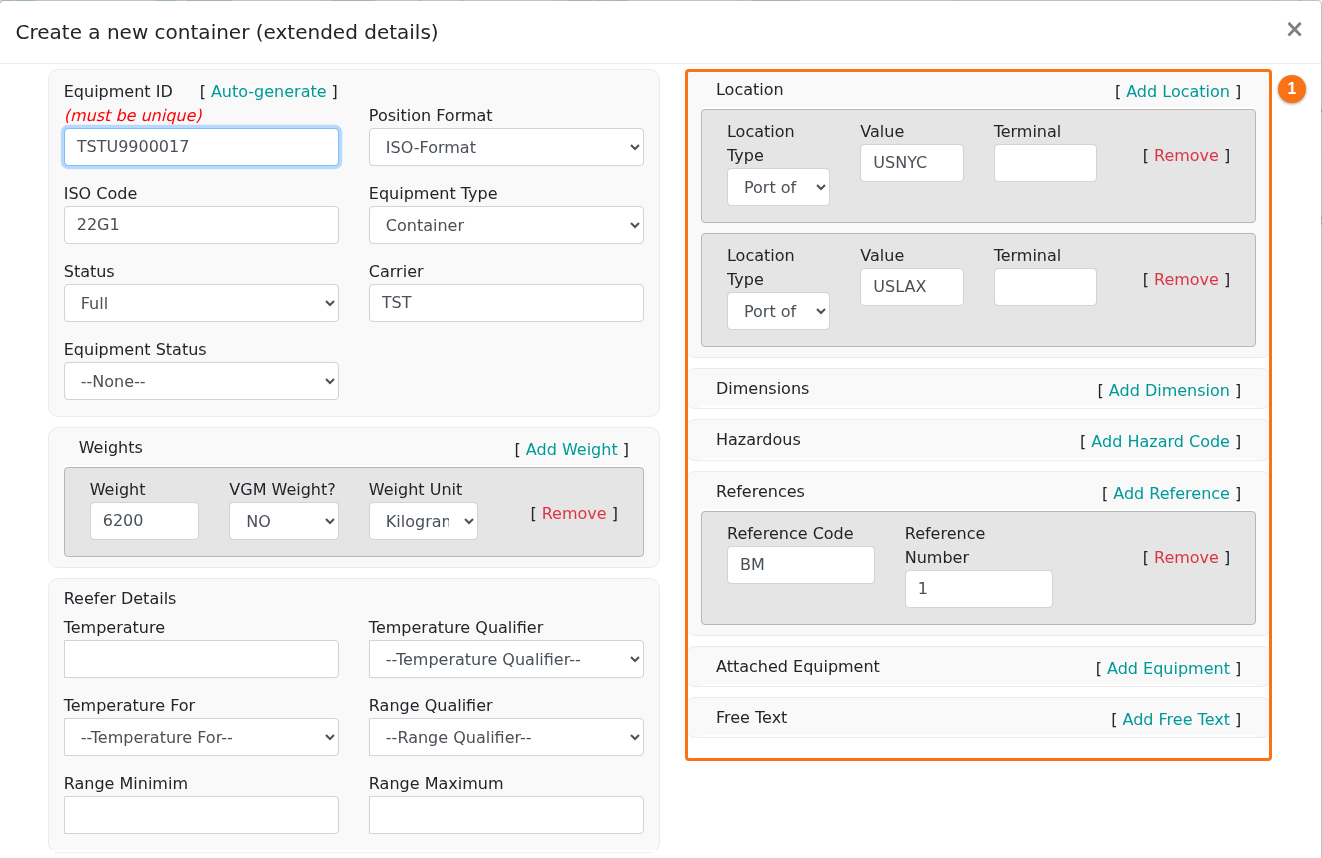
- To see all the details you can add for a container record, click Show Detailed Form. The form Create a new container (extended details) opens. It has more fields on the left (for example Position Format, Equipment Type and Reefer Details). The sections on the right (1 in the picture) are Location, Dimensions, Hazardous, References, Attached Equipment and Free Text.
-
Fill in the form. Then click one of these buttons:
- Save and Stow – use this to add one container.
- Save and Create Another – use this to add many containers. The form keeps all the information you entered and clears only the Equipment ID.
The new container goes to the Containers to move list on the right.
Use data from another file
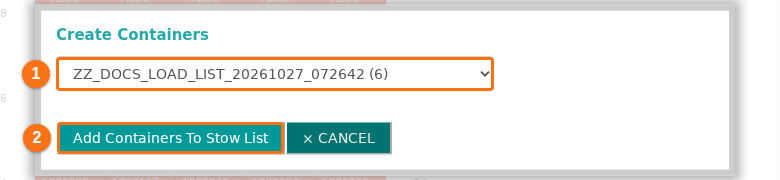
Section titled “Use data from another file”- Click From Previously Uploaded File. Choose the file in the list (1 in the picture). The number in brackets after the file name is the number of containers in the file. Click Add Containers To Stow List (2 in the picture).
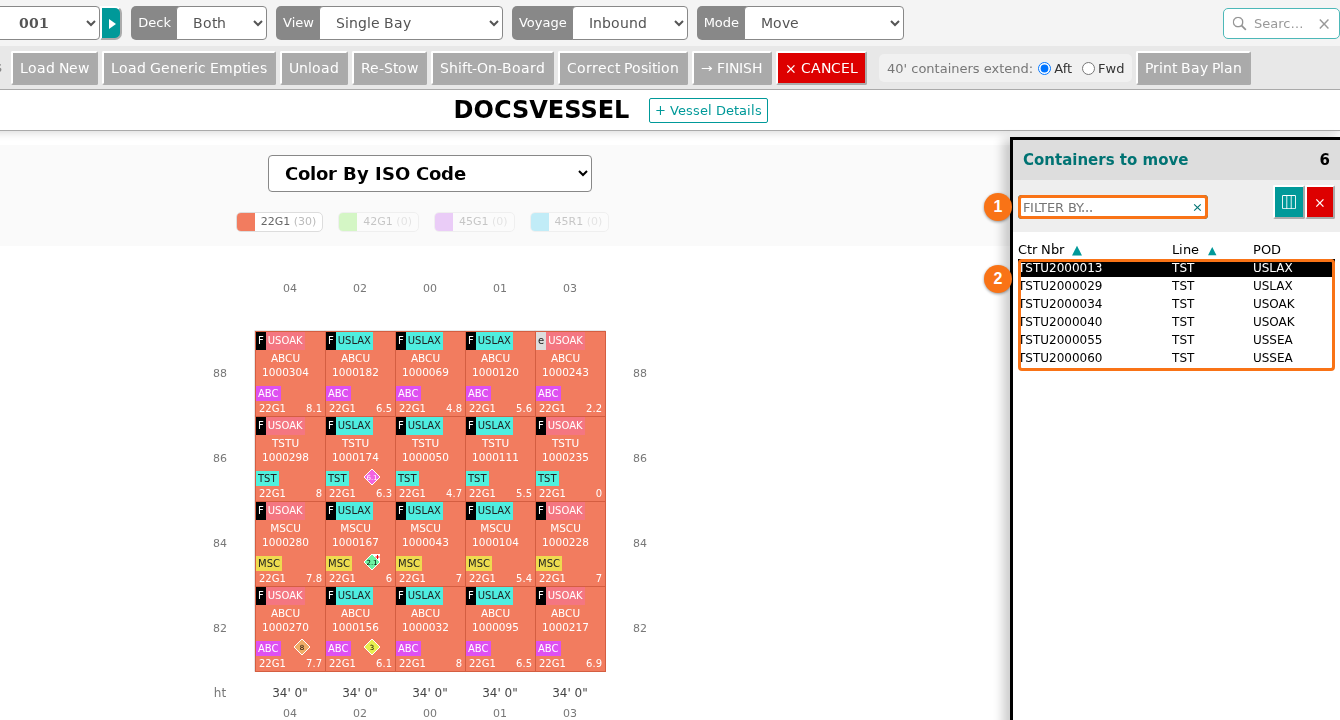
- All containers of the file are added to the Containers to move list on the right (2 in the picture). If the file has many containers, type an equipment ID in the FILTER BY… box (1 in the picture) to find the container you need.
Put the containers in the bay
Section titled “Put the containers in the bay”- Click a container in the list. Then click an empty slot in the bay to put the container there. A hint at the bottom of the screen reminds you: select the containers in the list, then select their new positions in the bay (in empty slots).
- To change the fields that the list shows, click the
 button above the list.
 - When all containers are loaded, click FINISH in the top menu. You are asked to confirm that you want to update the BAPLIE file.
To cancel: click CANCEL in the top menu.
Load generic empties
Section titled “Load generic empties”- Click Load Generic Empties. The Create Generic Empties window opens.
- Fill in the fields: Number of containers (1 in the picture; the maximum is 1,000), ISO Code, Carrier, Weight with its unit, Port of Discharge and Port of Load. The text next to each field shows its limit. Click in a field to see values that the system takes from your BAPLIE file. Then click CREATE (2 in the picture).
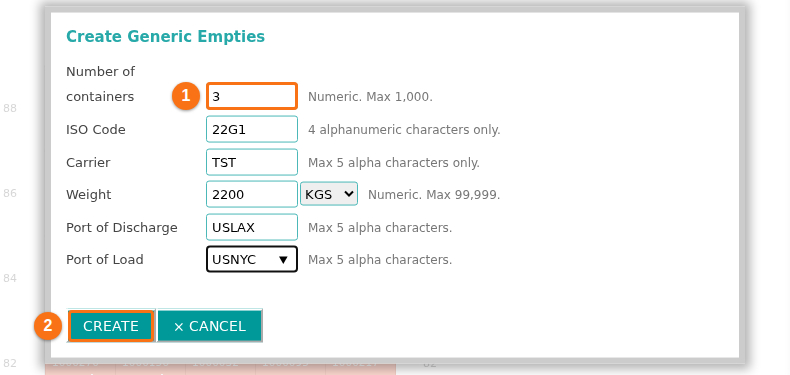
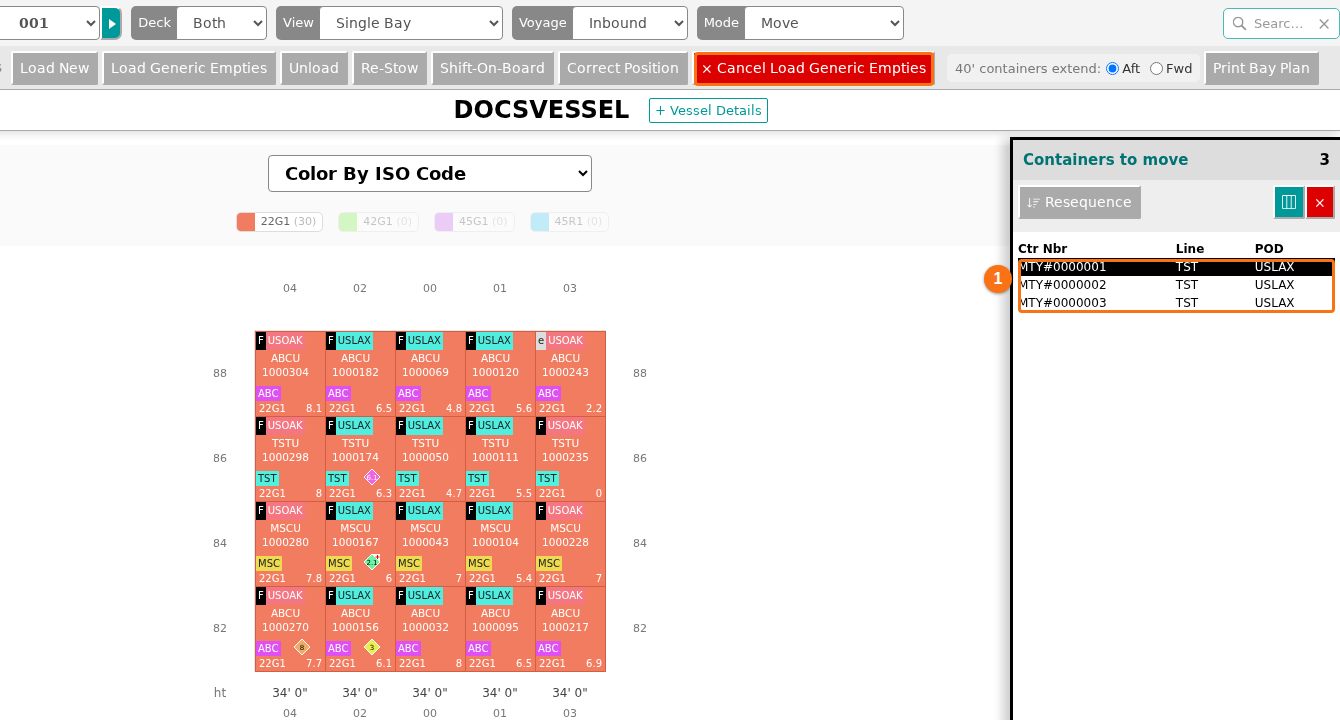
- The empties show in the Containers to move list (1 in the picture). Their IDs start with MTY#. Click a container in the list. Then click an empty slot in the bay to put the container there. Do this for each container in the list. You can use the Bays menu to go to another bay.
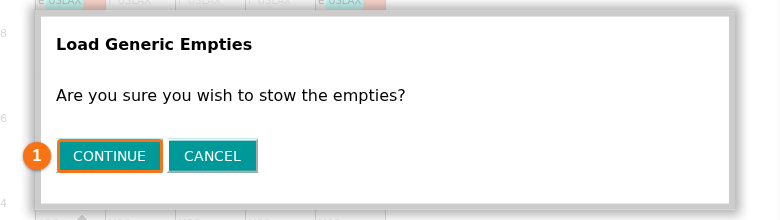
- When all containers from the list are in empty slots, the Load Generic Empties window asks “Are you sure you wish to stow the empties?”. Click CONTINUE (1 in the picture) to finish.
To cancel: click Cancel Load Generic Empties in the top menu (boxed in the picture above).
Unload containers
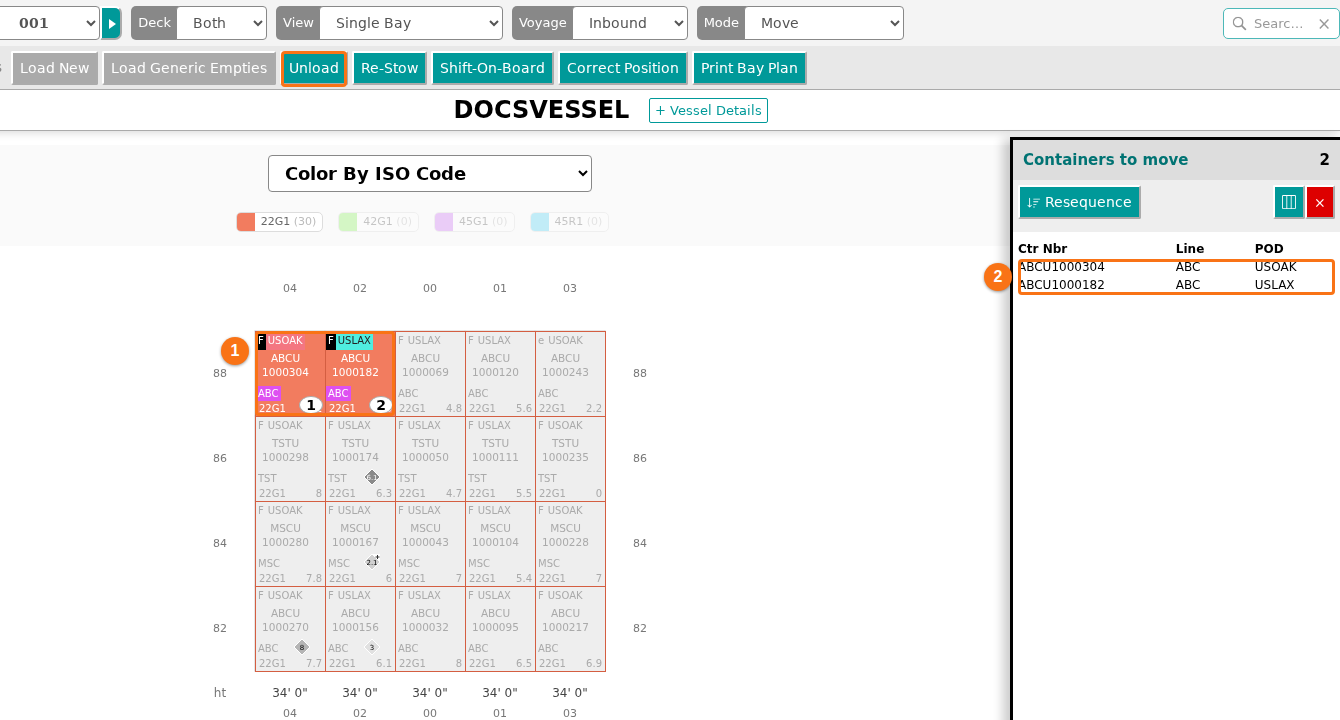
Section titled “Unload containers”- Select one or more containers in the current bay. You can click the containers one at a time. Or click an attribute value in the legend at the top of the screen. For example, one click selects all containers for one POD (port of discharge) in the bay. Each selected container gets a number in the bay (1 in the picture) and shows in the Containers to move list (2 in the picture). All other containers turn grey.
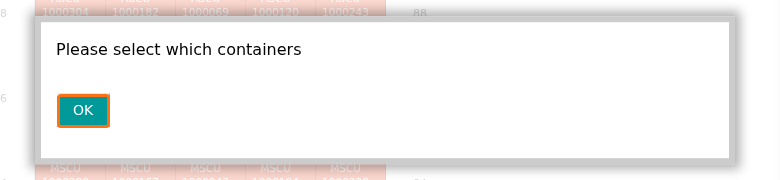
If you click Unload and no container is selected, a window says Please select which containers. Click OK, then select the containers.
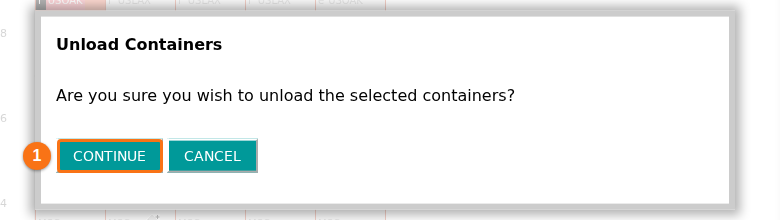
- Click Unload. A window asks “Are you sure you wish to unload the selected containers?”. Click CONTINUE (1 in the picture). This removes the selected containers from the BAPLIE file.
Re-stow containers
Section titled “Re-stow containers”- Select one or more containers in the current bay, as in step 1 of “Unload containers”.
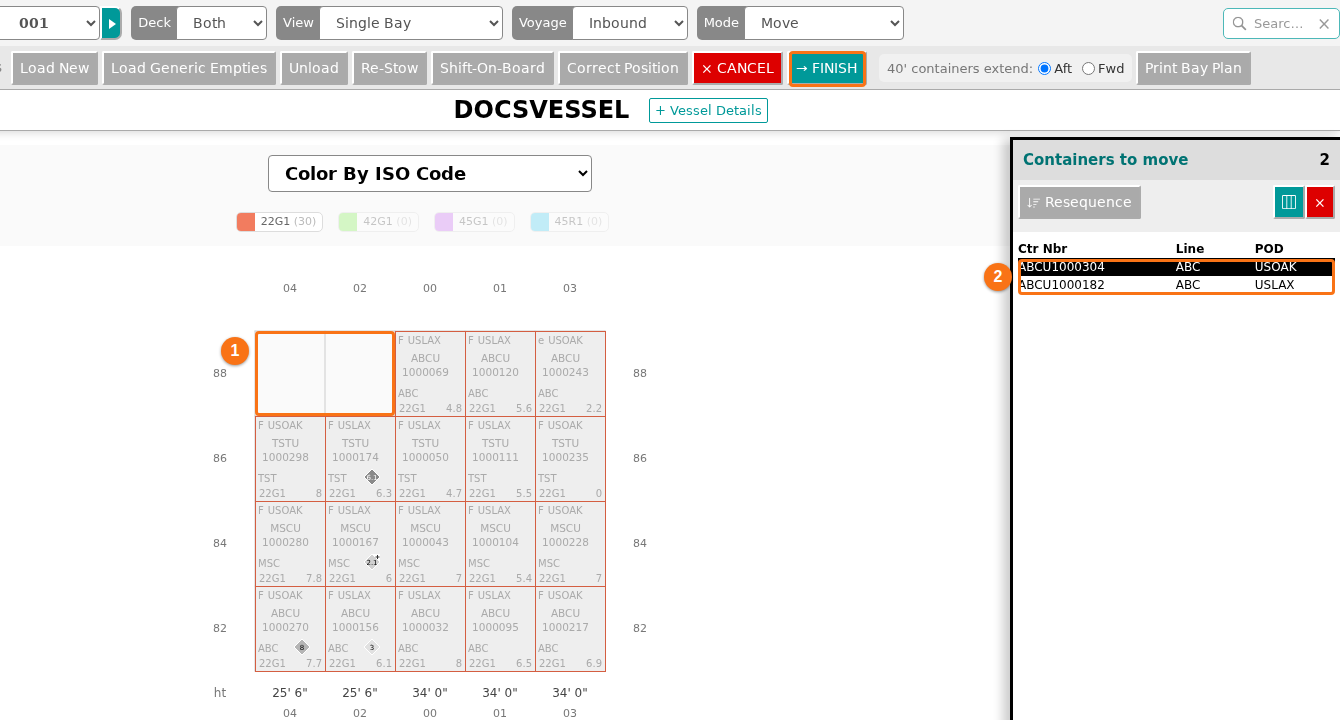
- Click Re-Stow. The selected containers disappear from their slots in the 2D view (1 in the picture). They show in the Containers to move list (2 in the picture). The CANCEL and FINISH buttons show in the top menu.
- Click a container in the list on the right. Then click an empty slot to move the container to its new position. You can use the Bays menu to go to another bay.
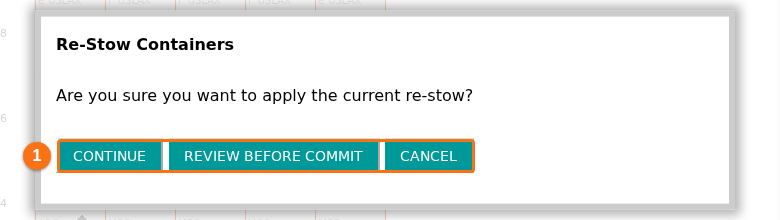
- After you put the last container in a new position, a window asks “Are you sure you want to apply the current re-stow?”. It has three buttons (1 in the picture):
- CONTINUE – apply the re-stow.
- REVIEW BEFORE COMMIT – check the changes one more time.
- CANCEL – discard the changes.
Download the changes
Section titled “Download the changes”After you move containers, you can download the changes as an updated BAPLIE file.
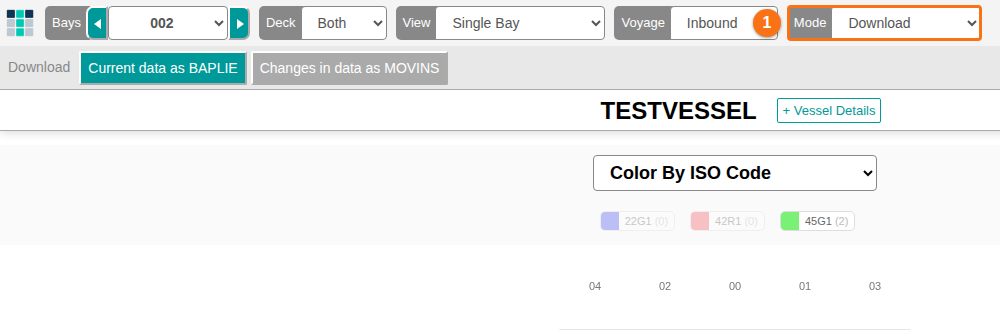
- In the Mode list at the top of the screen (1 in the picture), choose Download.
- Click Current data as BAPLIE. The file downloads in the same BAPLIE version as the file you uploaded.
The other button is Changes in data as MOVINS.