

How to set up multi-factor authentication
Use this guide to set up multi-factor authentication (MFA) for your own account. MFA is a second check when you sign in. After your password, you enter a 6-digit code from an authenticator app on your phone. The guide also shows the sign-in code step, how to turn MFA off, and how a facility administrator resets MFA for a user.
Before you start: install an authenticator app on your phone. The application suggests the “Google Authenticator” app from the Play Store or the App Store. Another authenticator app also works. Your phone clock must be correct.
Turn on MFA for your account
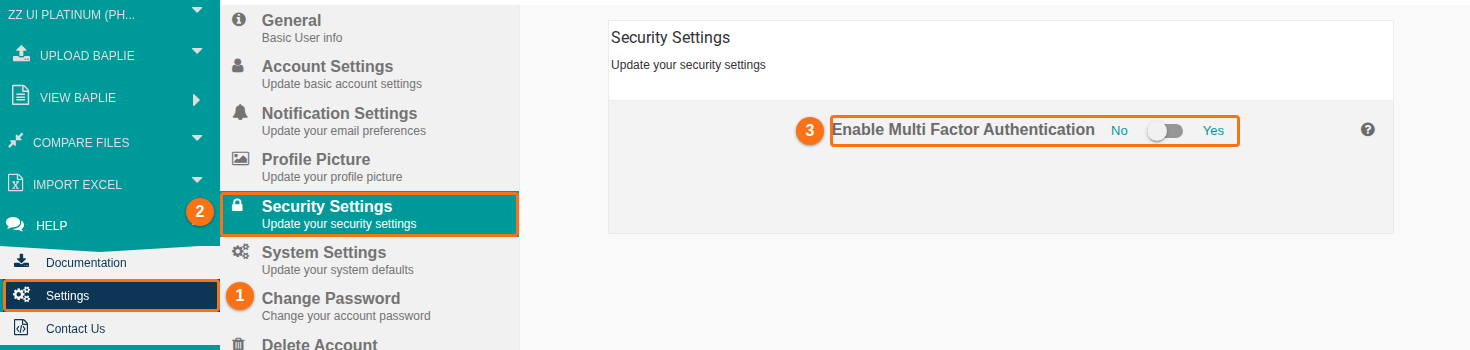
Section titled “Turn on MFA for your account”- In the Function Menu on the left, click Help. Then click Settings (1 in the picture). The Settings page opens.
- Click the Security Settings tab (2 in the picture).
- Click the switch Enable Multi Factor Authentication (3 in the picture) so that it shows Yes.
- A window Enter authentication code: opens. It shows a QR code and a setup key.
- Open the authenticator app on your phone. Add a new account in one of two ways:
- Scan the QR code with the app.
- Or type the setup key into the app by hand.
- The app shows a 6-digit code. Type it in the six boxes in the window. The window checks the code when you type the last digit. You can also click Verify Code.
- When the code is correct, the window says MFA setting has been updated. and the switch shows Yes. The window closes after about two seconds.
If the code is wrong, the window says Invalid authentication code. Please try again. Enter the code that the app shows now. The switch stays at No until a code is accepted. If you click Close before the code is accepted, MFA is not turned on.
Sign in with MFA
Section titled “Sign in with MFA”After you turn on MFA, every sign-in has a second step.
- Enter your login details and sign in as usual.
- The page Authentication Code Required opens. It says Enter the authentication code.
- Open the authenticator app and read the 6-digit code.
- Type the code in the six boxes. The page checks the code when you type the last digit. You can also click Sign In.
The page also has these buttons:
| Button | What it does |
|---|---|
| Show QR Code | Shows the QR code and the setup key again. Use it to add the account to a new phone. |
| Reset Authentication | Shows who can reset your MFA. See “If you cannot get a code” below. |
Note: if the account has too many open sessions, the page says that they will all be signed out when you sign in.
If your facility requires MFA
Section titled “If your facility requires MFA”A facility administrator can require MFA for team members, guests and temporary logins. See How to manage security settings for your facility.
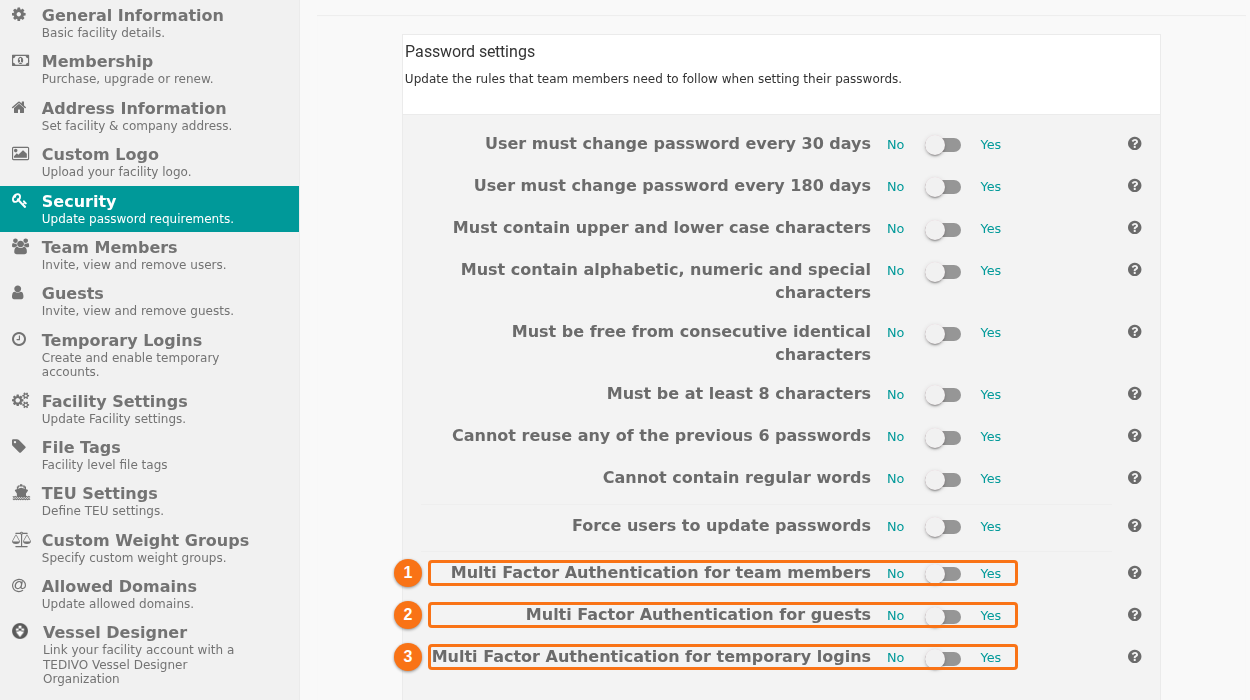
To require MFA (facility administrator): in the Function Menu, click Manage Facility and then Security. At the bottom of the page, turn on the switch for each group: Multi Factor Authentication for team members (1 in the picture), Multi Factor Authentication for guests (2 in the picture) or Multi Factor Authentication for temporary logins (3 in the picture). The switch shows Yes when it is on. In the picture, all three are off (No).
When your facility requires MFA and you have not set it up, the sign-in has an extra part:
- Sign in with your login details. The page Authentication Code Required opens. It shows a QR code and a setup key.
- Scan the QR code with your authenticator app. If you cannot scan it, click Enter Setup Code and type the setup key into the app. Click Scan QR Code to go back to the QR code.
- Click Enter Verification Code.
- Type the 6-digit code from the app. The page checks it when you type the last digit. You can also click Sign In.
You cannot turn MFA off while a facility requires it. The switch shows the message One or more of the facilities you are a member of require that this setting to be enabled.
Turn off MFA
Section titled “Turn off MFA”Before you start: you need your phone with the authenticator app.
- Open Help, Settings, and the Security Settings tab, as above.
- Click the switch Enable Multi Factor Authentication so that it shows No.
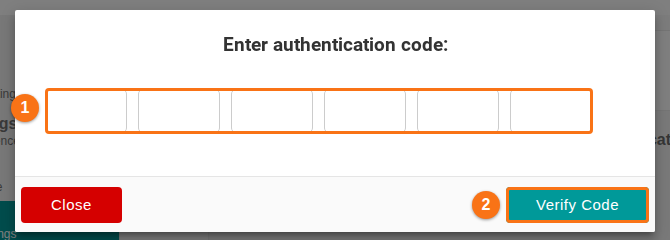
- The window Enter authentication code: opens. Enter the 6-digit code from your app in the six boxes (1 in the picture). Click Verify Code (2 in the picture) if the window does not check it by itself.
- The window says MFA setting has been updated. The switch shows No.
If you click Close before the code is accepted, MFA stays on.
If you cannot get a code
Section titled “If you cannot get a code”You lost your phone, or the app was deleted. A facility administrator can reset your MFA.
- On the page Authentication Code Required, click Reset Authentication.
- The page shows the names of the administrators of your facility who can reset your MFA. If there is none, the page tells you how to contact Support. See also How to contact Support and create a support ticket.
- Ask one of them to reset your MFA. After the reset, sign in with your password. The page shows a new QR code and a new setup key. Scan the new QR code and enter the 6-digit code, as in “If your facility requires MFA” above.
Reset MFA for a user (facility administrator)
Section titled “Reset MFA for a user (facility administrator)”Before you start: you must be an administrator of the facility.
- In the Function Menu, click Manage Facility under the name of your facility.
- Click Team Members. For a guest, click Guests. For a temporary login, click Temporary Logins.
- Find the user in the list. Click the padlock icon in the row of the user. Its tip says Reset Multi Factor Authentication.
- The reset starts at once. The application does not ask you to confirm, so check the name of the user first. A message says MFA code reset.
- Tell the user to sign in again. The user sees a new QR code and a new setup key and sets up the authenticator app again.
The padlock shows only for users who are active and who use MFA, or who must use MFA because of the facility settings.
Good to know
Section titled “Good to know”- Every user type can set up MFA: team members, guests and temporary logins.
- Each reset creates a new setup key. The old entry in the authenticator app does not work any more. Delete it from the app.
- Do not share your setup key or your codes with other people.