How to use the Inbound / Outbound voyage functionality
Use this guide to switch between the inbound voyage and the outbound voyage in 2D and 3D View. You do not need to open two browser tabs. You can quickly see the differences between the two states of the vessel call at the same facility.
Before you start: upload both the Inbound and the Outbound BAPLIE file of the vessel.
- Open the Inbound BAPLIE file. In the Function Menu, open Visualization and click 2D Bay View or 3D Vessel View. The file opens as the Inbound voyage by default.
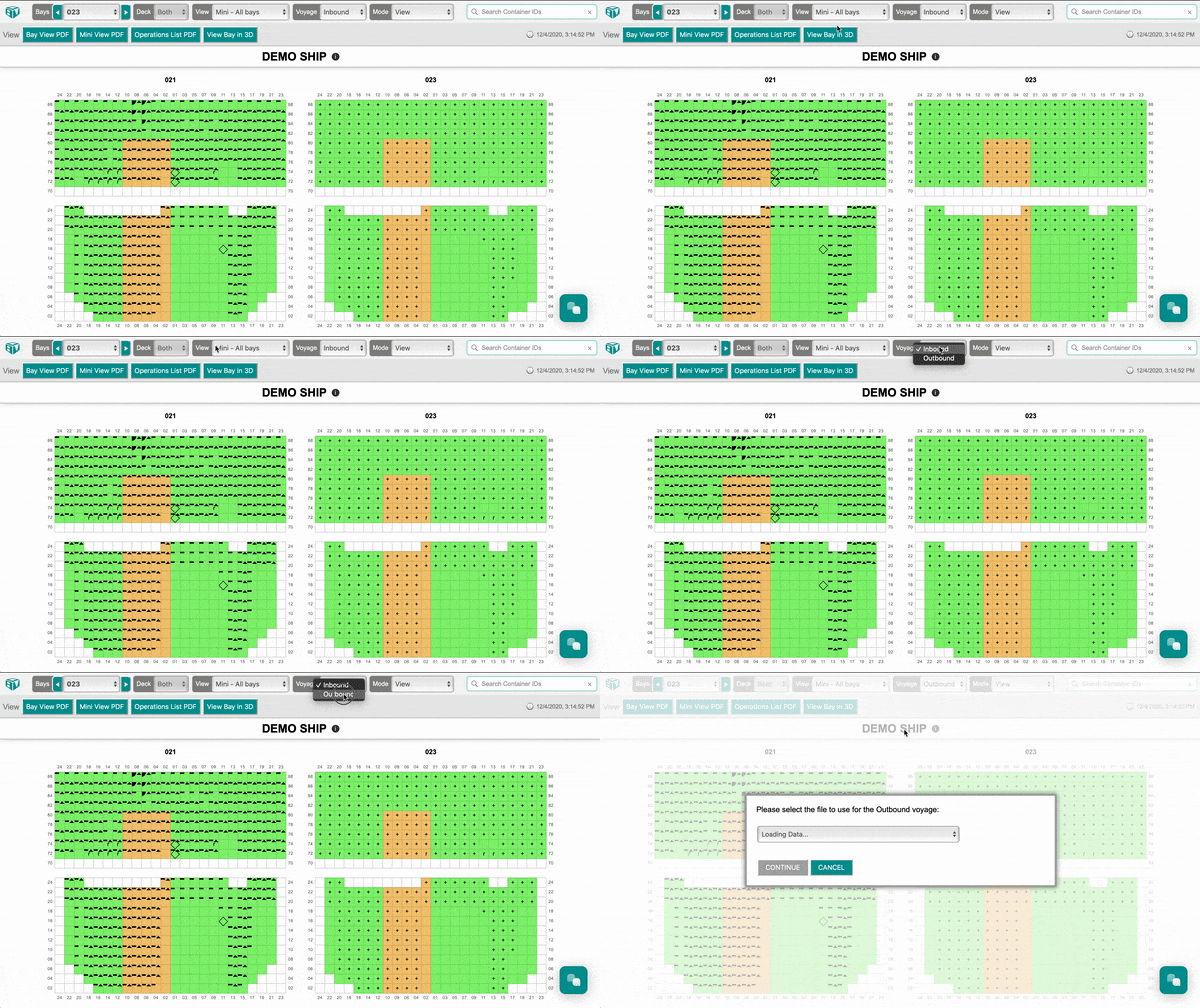
- In the menu bar, open the Voyage drop-down and choose Outbound.

- A window opens with the text Please select the file to use for the Outbound voyage. It lists the BAPLIE files that have the same vessel name. Choose the file that has the outbound voyage data (1 in the picture).
- Click CONTINUE (2 in the picture). To stop, click CANCEL.
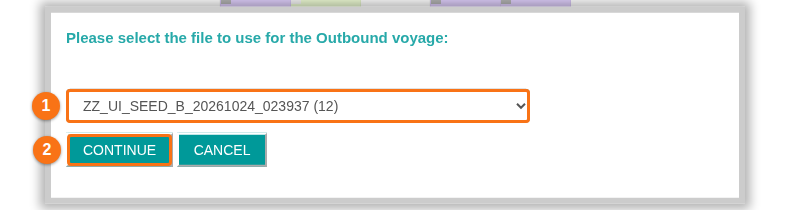
- BAPLIE Viewer Online loads the data of the second file as the Outbound voyage.
- To go back, choose Inbound in the Voyage drop-down.
The animation below shows how this works in the 2D view.