

How to use the Find Multiple button
Use this guide to find several containers at the same time. You paste or type a list of container IDs, and the table shows only the matching containers.
Before you start: upload a file and open it.
- In the Function Menu, open Visualization and click Main Content. The table with the file content opens.
- In the Function Menu, click Find Multiple (1 in the picture). A search box opens above the table.
- Type or paste the container IDs in the search box (2 in the picture). Put a comma or a semicolon between the IDs.
- You can enter full container IDs.
- You can also enter the first letters of an ID (a prefix, for example
BVO) or a part of an ID. The table then shows all containers that match these characters.
- Leave the drop-down at the left of the search box on Include.
- Click Search. The table shows only the containers that match.
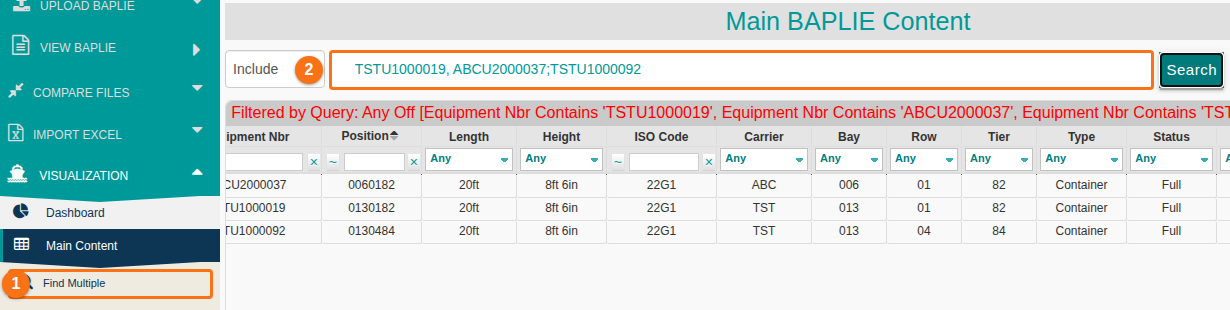
Note: the drop-down at the left of the search box has an Include choice and an Exclude choice.