

How to upload a MOVINS file
Use this guide to upload a MOVINS file (a stowage instruction file) to BAPLIE Viewer Online.
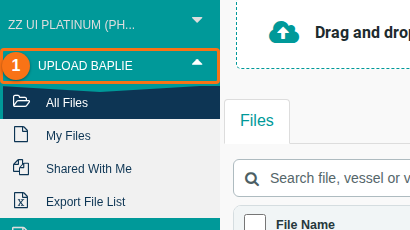
- In the Function Menu at the top left, click Upload BAPLIE (1 in the picture). You can do this from any page.
- Drag the file into the upload area, or click Or Select to choose a file on your computer. Choose the MOVINS file on your computer or in a network location.

- Wait while BAPLIE Viewer Online reads the file. It uploads the MOVINS file to our servers and checks that the file is a .MVS, .EDI or .TXT file. Then it reads the contents and finds out which EDIFACT EDI file you uploaded.
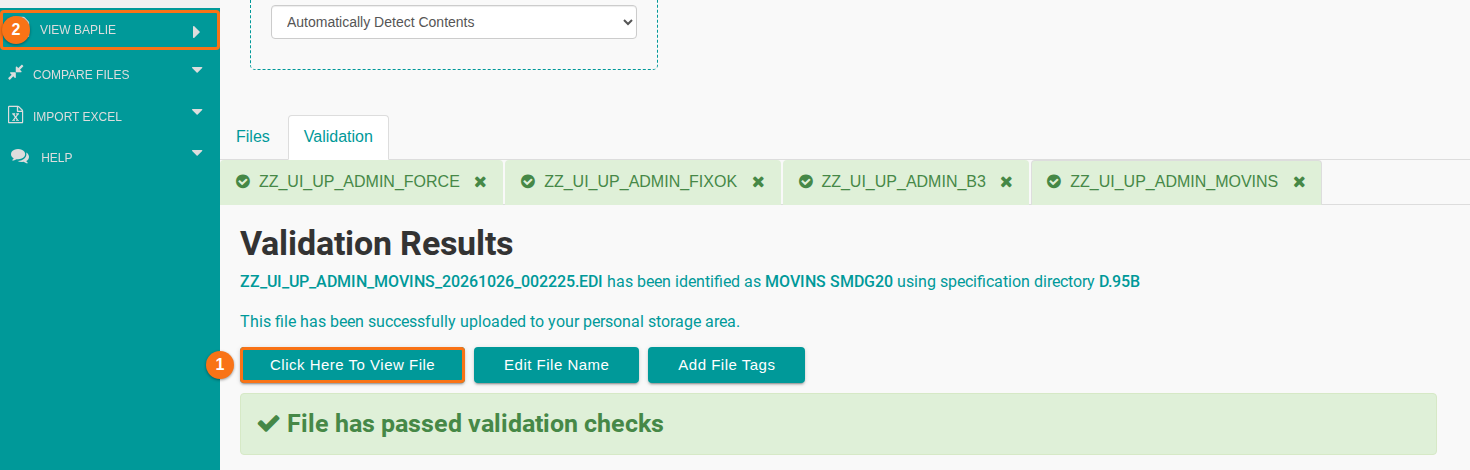
- Read the Validation Results. If validation passes, the file is a MOVINS file and its content follows the SMDG specification for that version. Click Click Here To View File (1 in the picture) to open the file. You can also open uploaded files at any time with View BAPLIE in the Function Menu (2 in the picture).
If validation fails
Section titled “If validation fails”BAPLIE Viewer Online tells you that the file failed and tries to explain why. The content of the file must follow the MOVINS EDIFACT specification of SMDG.org.
If you cannot find the reason, click Contact Support and create a ticket. A member of our team checks the file and explains the reason.
Convert a BAPLIE file to MOVINS
Section titled “Convert a BAPLIE file to MOVINS”To create a MOVINS file from a BAPLIE file that you uploaded before, see this article.