

How to navigate the TEU calculation option
TEU means twenty-foot equivalent unit. BAPLIE Viewer Online uses TEU values to count containers. You can save many TEU calculations in your user profile. A facility administrator can also set TEU calculations for all users of the facility. This guide explains how to save a TEU calculation for your own user profile.
- Log in to baplieviewer.com.
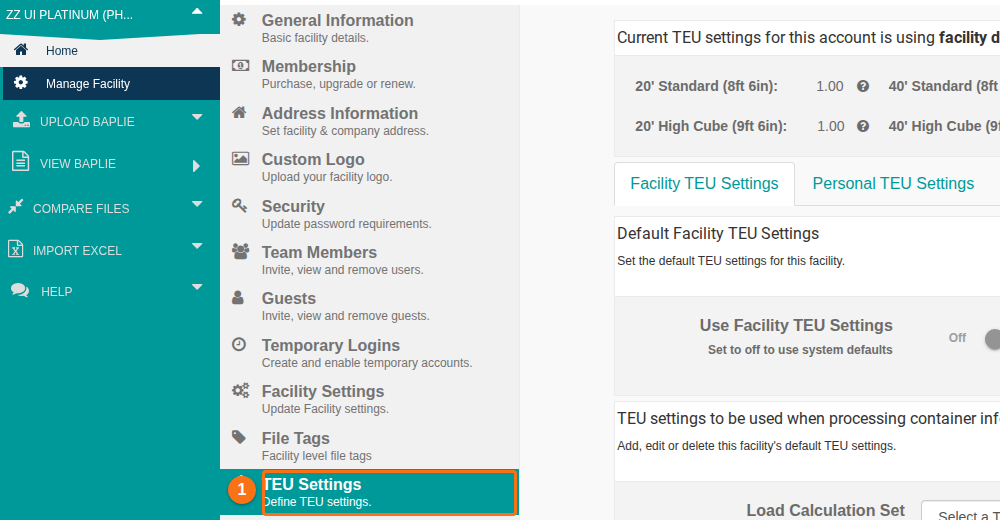
- In the Function Menu on the left, click Manage Facility. Then click TEU Settings (1 in the picture). The page has two tabs: Facility TEU Settings and Personal TEU Settings.
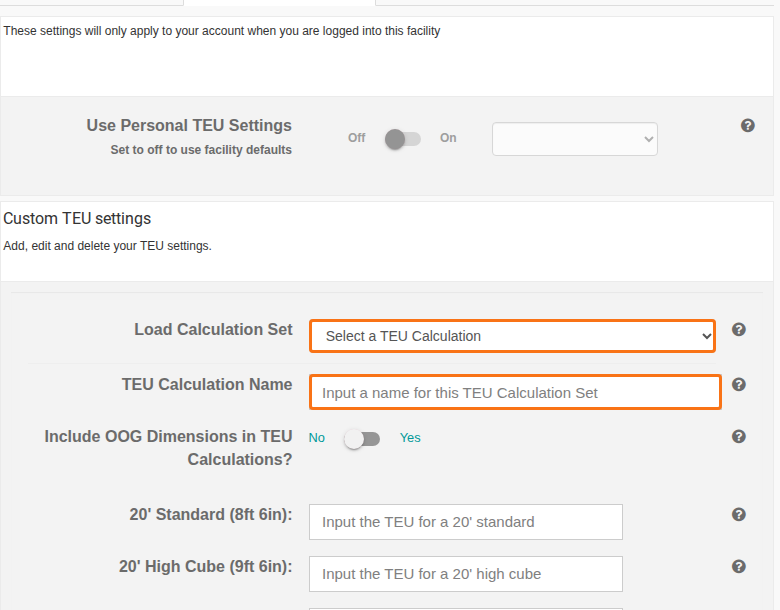
- Click Personal TEU Settings. These settings apply only to your account when you are logged in to this facility.
- In TEU Calculation Name (the second orange box in the picture), enter a name for the calculation. The name is saved in your user profile. It then shows in the Load Calculation Set dropdown (the first orange box).
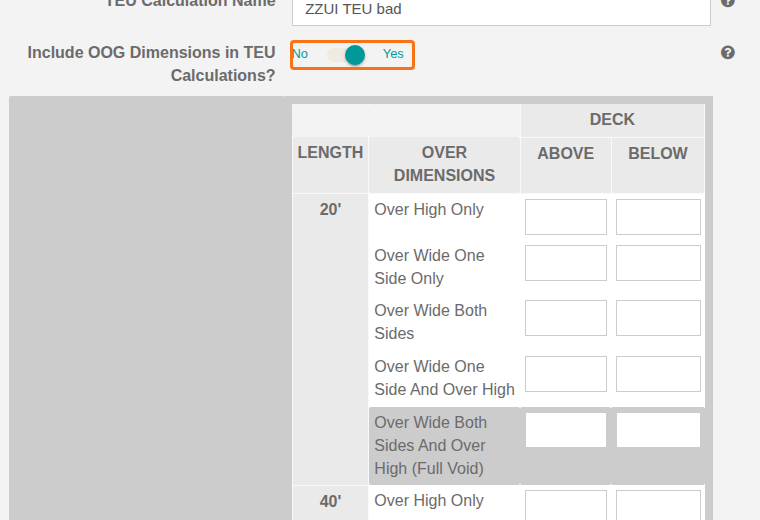
- To include OOG (out of gauge) dimensions, switch Include OOG Dimensions in TEU Calculations? to Yes (the orange box in the picture). A table shows. Its rows are Over High Only, Over Wide One Side Only, Over Wide Both Sides, Over Wide One Side And Over High and Over Wide Both Sides And Over High (Full Void). Under DECK, it has the columns ABOVE and BELOW. Fill in the values for each length in the table.
-
Enter a TEU value for each of these container types:
- 20’ Standard (8ft 6in)
- 20’ High Cube (9ft 6in)
- 40’ Standard (8ft 6in)
- 40’ High Cube (9ft 6in)
- 45’ Standard (8ft 6in)
- 45’ High Cube (9ft 6in)
Each value is a decimal number with 2 decimal places, between 1 and 3.
-
Click Add New Calculation to save the calculation.
Edit or delete a calculation
Section titled “Edit or delete a calculation”- In the Load Calculation Set dropdown, choose a saved calculation. It loads into the form.
- To save changes, click Edit Current Calculation (1 in the picture). To remove the calculation, click Delete.
- To make another calculation, use the form again. You can save as many calculations as you want.
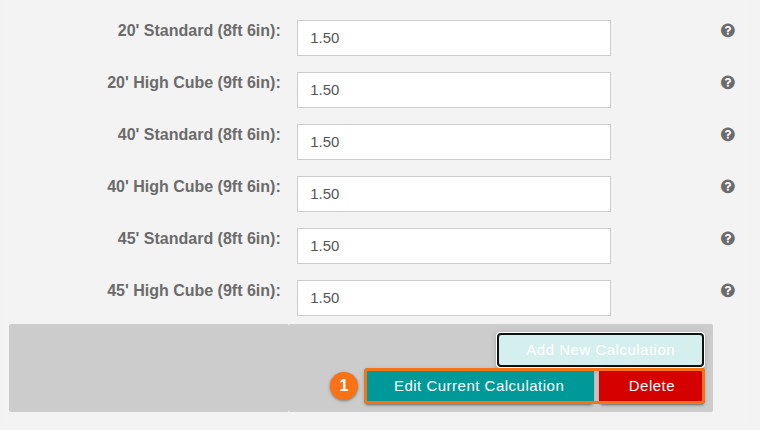
Note: in this picture, Add New Calculation is grey because a saved calculation is loaded.
Good to know
Section titled “Good to know”At the top of Personal TEU Settings, the switch Use Personal TEU Settings shows Off and On. Its note says “Set to off to use facility defaults”.