How to view Hazardous and IMDG information in the BAPLIE file
Use this guide to see the hazardous cargo and the IMDG information of the containers in your BAPLIE file. IMDG is the International Maritime Dangerous Goods code. There are four ways to see this information.
Before you start: upload a file and open it.
Main Content
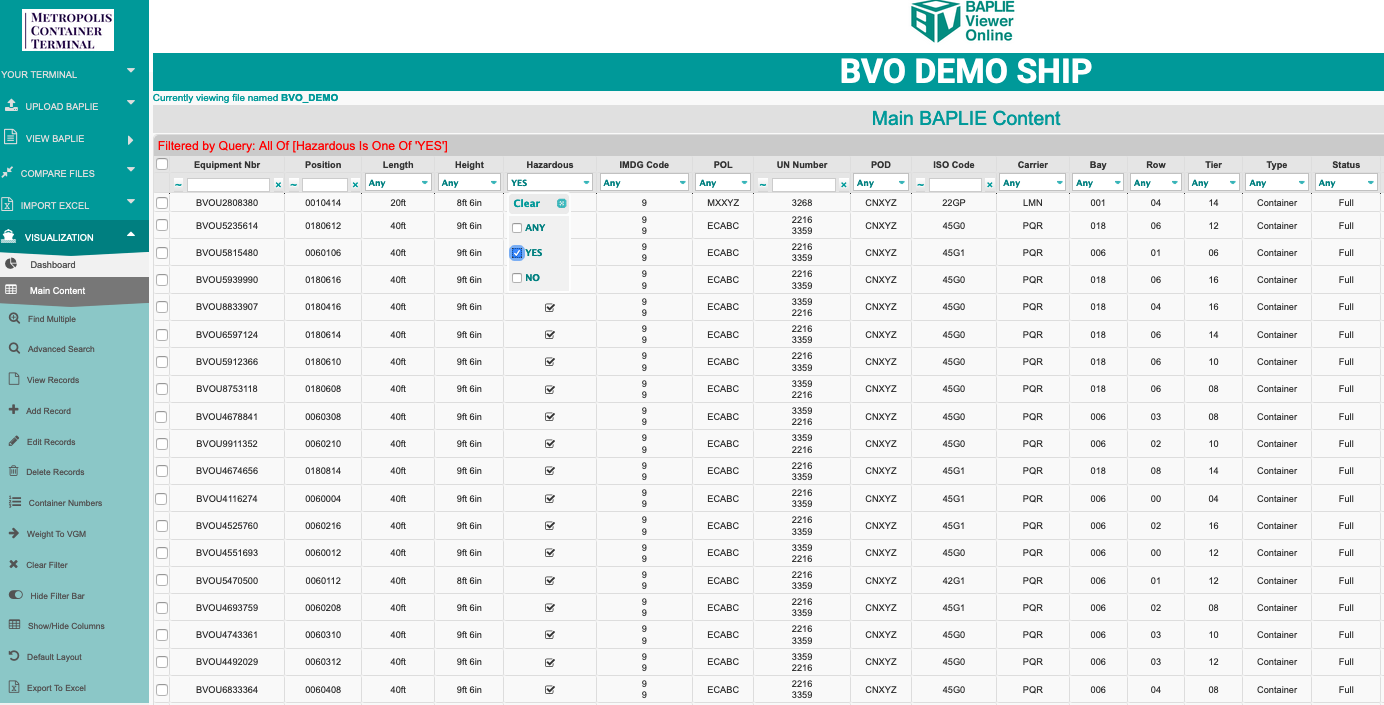
Section titled “Main Content”- In the Function Menu, open Visualization and click Main Content. The table with the file content opens.
- Find the Is Hazardous column. Depending on your column settings, you may need to scroll to the right.
- In the filter of that column, choose Yes. The table shows only the hazardous cargo.
The table also has columns for IMDG Code and UN Number.
Edit hazardous details
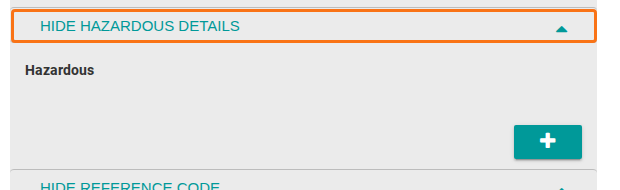
Section titled “Edit hazardous details”To change hazardous details, follow the guide How to edit one or more records. The Hazardous Details section is in the record form.
2D Bay View
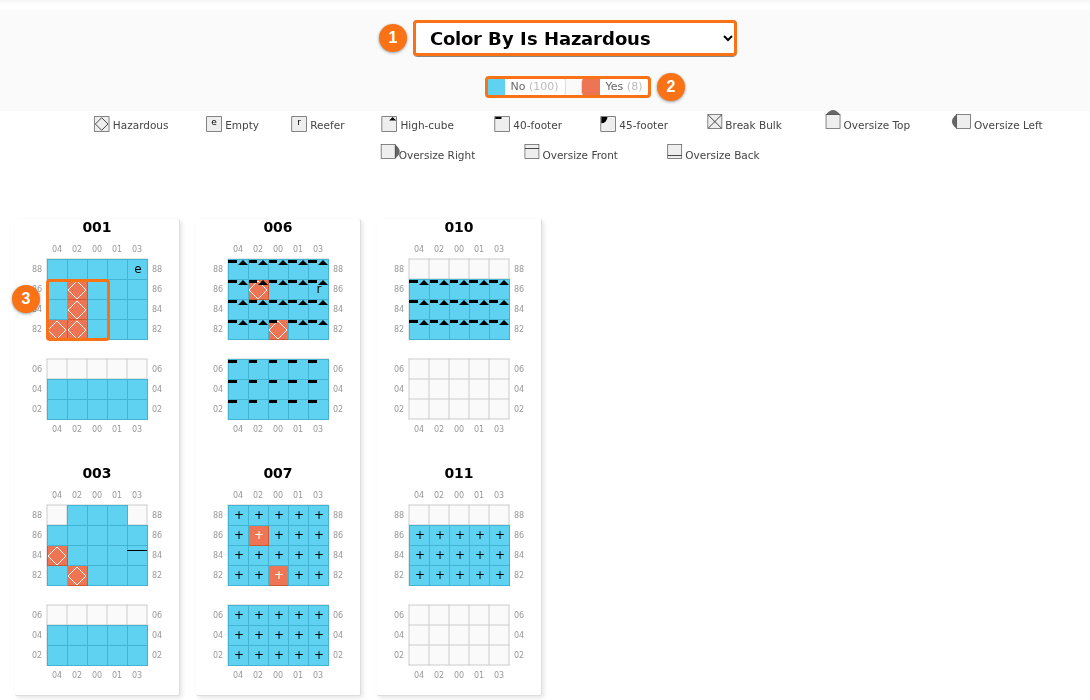
Section titled “2D Bay View”- In the Function Menu, open Visualization and click 2D Bay View. You can use the mini view (all bays) or a single bay view.
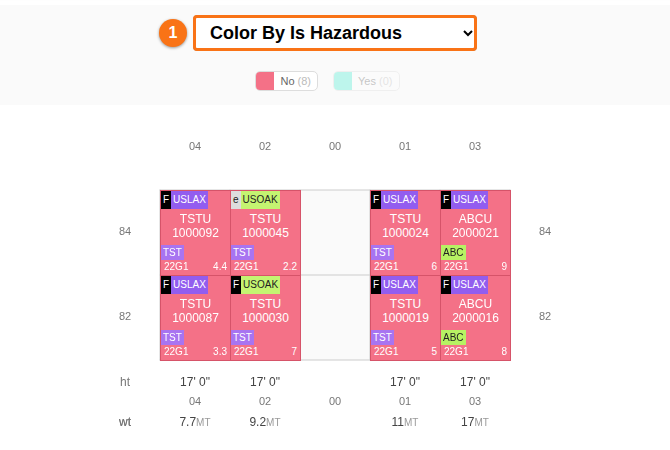
- Open the colour drop-down at the top (1 in the picture) and choose Color By Is Hazardous.
- The legend shows the colours for No and Yes (2 in the picture), with the number of containers for each.
- In the mini view, a diamond symbol marks each hazardous container (3 in the picture).
Reports
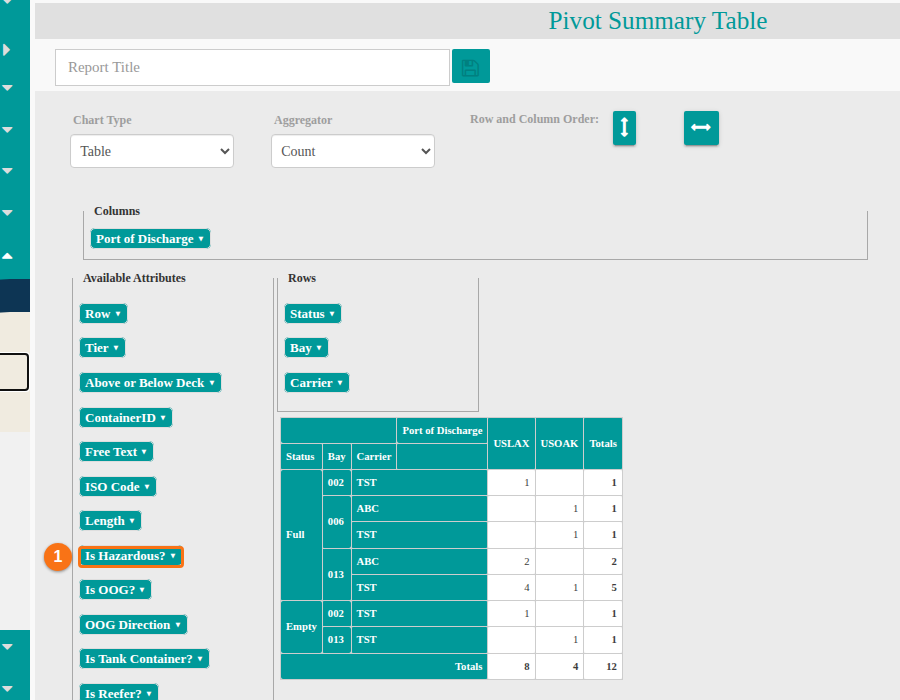
Section titled “Reports”You can also use the Pivot Summary report. Use it to show only the hazardous cargo and to get counts by IMDG. The Is Hazardous? attribute is in the Available Attributes list (1 in the picture).