

How to add a custom logo for your facility
Use this guide to add your own logo for your facility. The logo shows at the top left of the Function Menu for all user accounts of the facility. It helps accounts with more than one facility to tell the facilities apart and not mix up files.
Before you start: you must be the main user or an administrator of the facility. Prepare a .png image that is smaller than 1200px by 1200px.
- Log in to baplieviewer.com. The home page opens with the Function Menu on the left.
- Click Manage Facility under your facility’s name.
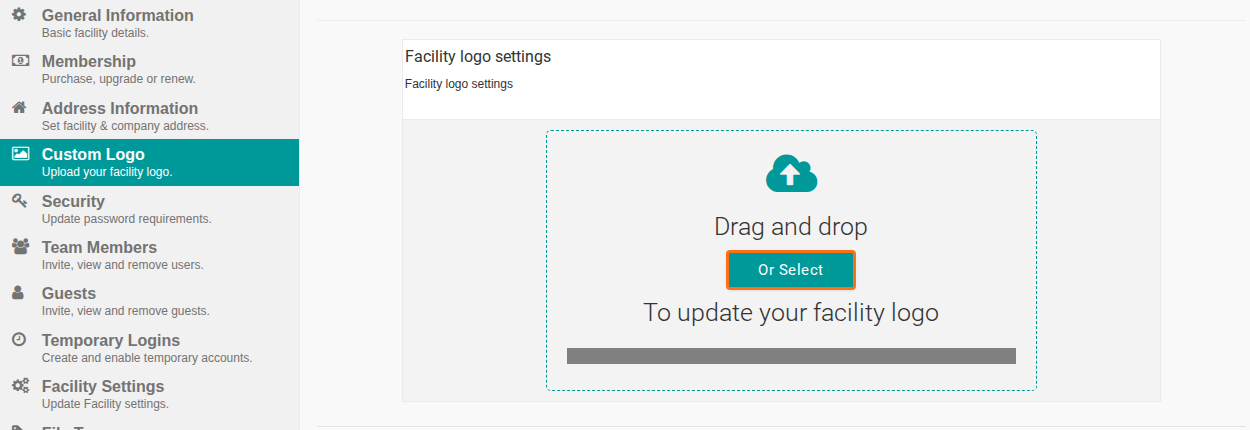
- Click Custom Logo. The Facility logo settings page opens.
- Add your image in one of two ways (the Or Select button is highlighted in the picture):
- Drag the image into the dashed area.
- Click Or Select and choose the file on your computer.
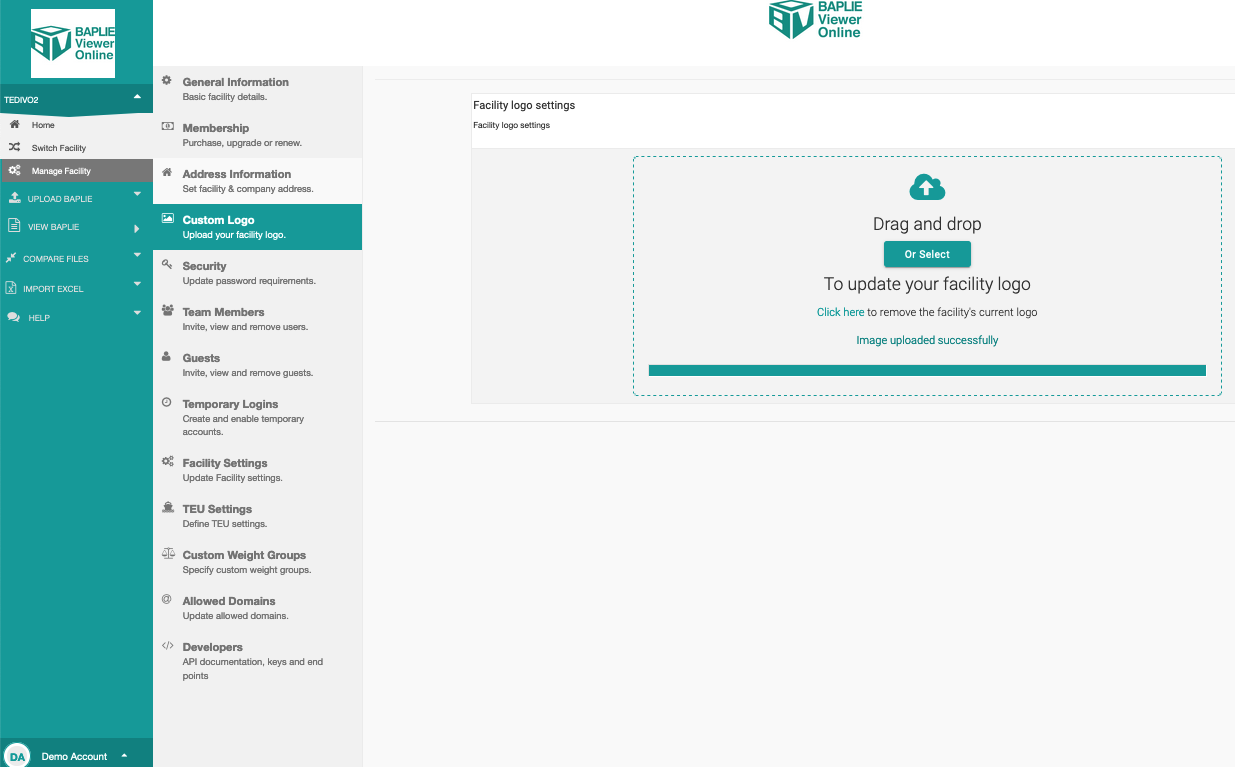
- Wait for the upload to finish. The screen shows the new logo at the top left. The logo changes for all user and guest accounts of your facility.
Change or remove the logo
Section titled “Change or remove the logo”Use the same uploader to change the logo or to remove it. In the older screenshot above, the page shows the link Click here to remove the current logo.
Note: the logo shows correctly only if it is a .png file smaller than 1200px by 1200px.