

How to log out active sessions
Use this guide when you cannot log in because of the error Too Many Active Sessions. You can log out all your active sessions yourself.
You can log in from two different browsers or computers at the same time. If you close your browser and do not log out, your session can stay active. The system removes sessions that are older than 60 minutes. If you try to log in again before the old sessions end, you can see the error Too Many Active Sessions.
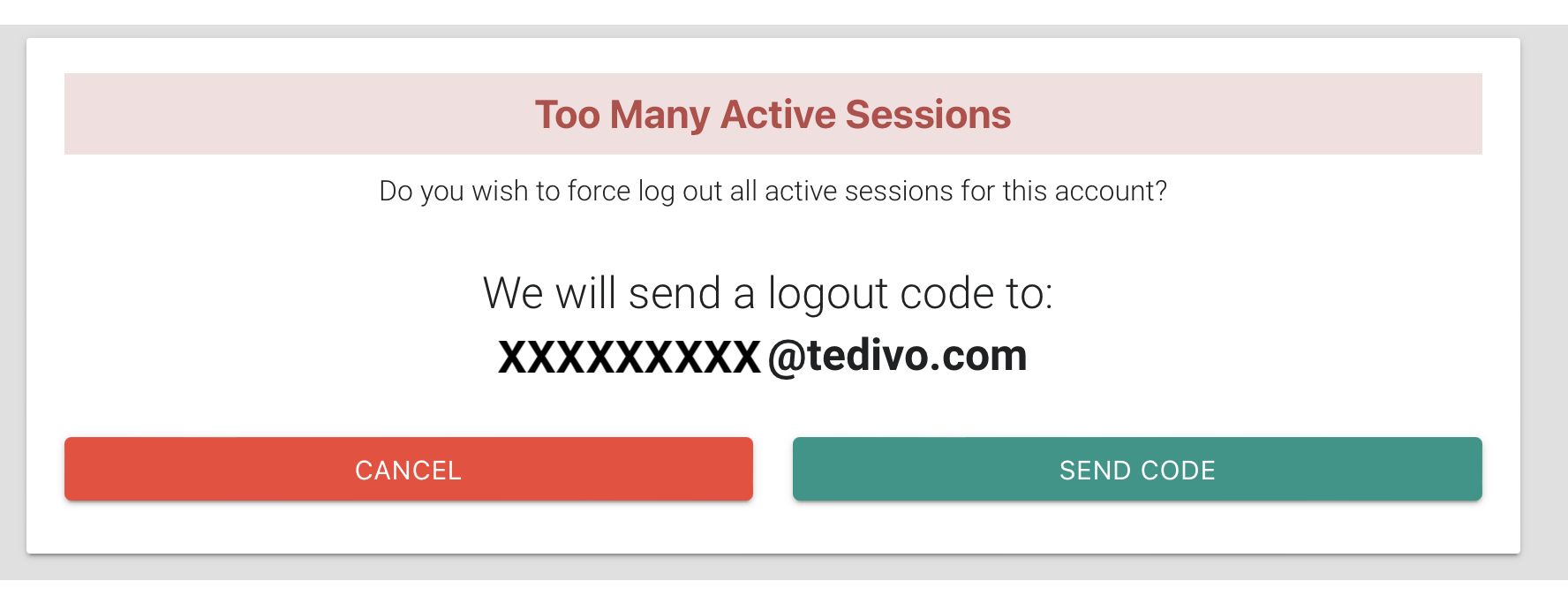
- Try to log in. The window Too Many Active Sessions asks: “Do you wish to force log out all active sessions for this account?” It also shows the address where the system will send a logout code.
- Click Send Code. To stop, click Cancel.
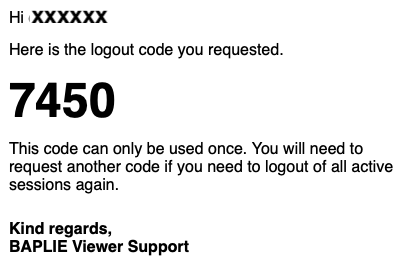
- Open the email that the system sends you. It has a 4 digit code. You can use the code only once.
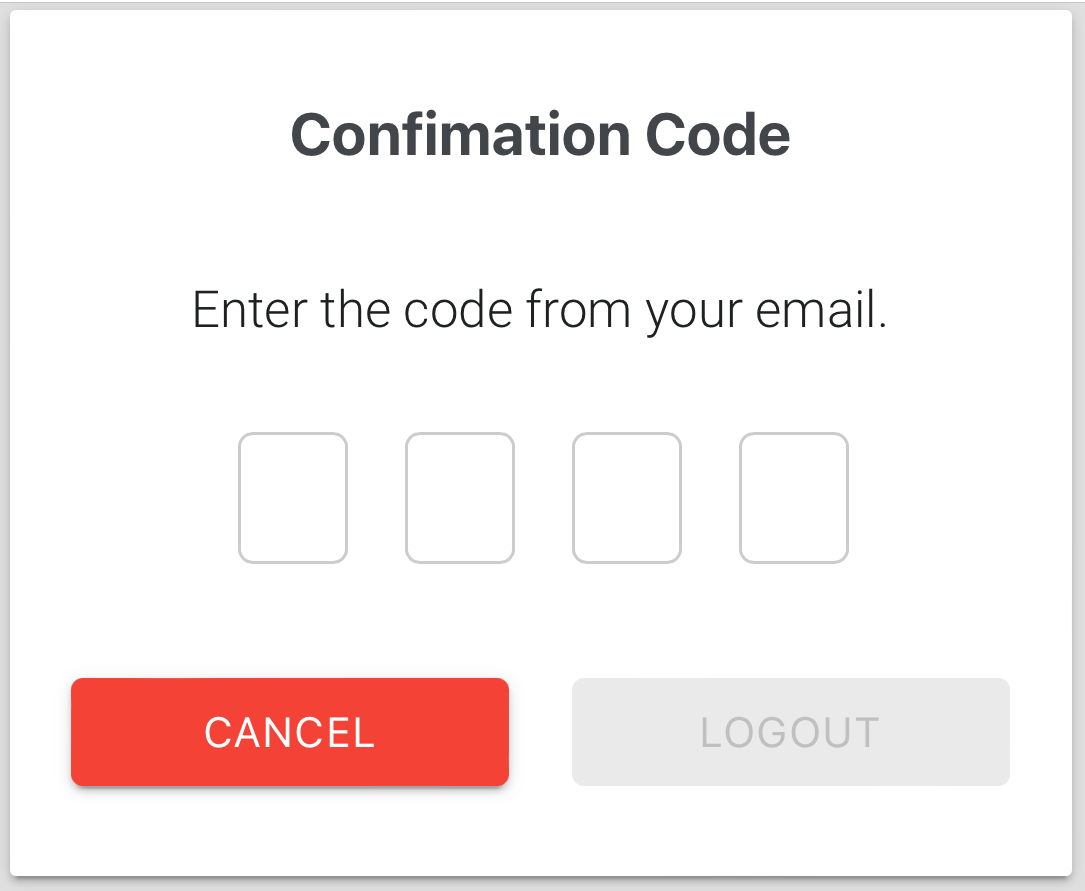
- In the code window, enter the 4 digits from the email in the four boxes.
- Click Logout. All your active sessions are logged out. Now you can log in again.
Good to know
Section titled “Good to know”- You can do this only once in 24 hours.
- If you must log out your connections again within 24 hours, you have two choices. Ask your Facility Administrator to log out your active sessions. Or wait 60 minutes for the old sessions to end.