

How to correct anomalies in data
BAPLIE Viewer Online checks every uploaded file for data that may be wrong (an anomaly). Use this guide to find the anomalies and correct them in the file.
- Upload a file with Upload BAPLIE, or open an earlier file with View BAPLIE. The Dashboard opens.
- Look at the top of the Dashboard. If the file has anomalies, a red Anomalies detected! button shows next to the container counts (1 in the picture). Click it to open the Anomalies page.

- You can also open the Anomalies page at any time. In the Function Menu on the left, click Validation (1 in the picture), then click Anomalies (2). Three tables load:
- Cargo with Anomalies in Data – data that is missing or not valid.
- Positions with Multiple Equipment – more than one container in the same position.
- Possible Floating Containers – containers that may be floating.
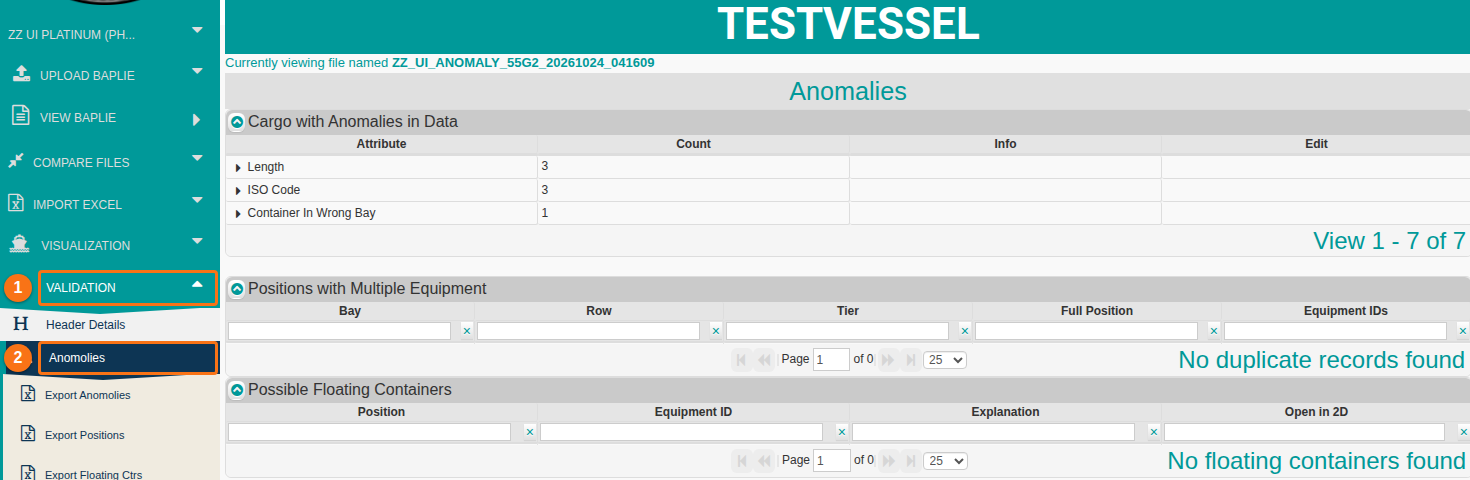
- Show or hide a table: click the green arrow next to the table name.
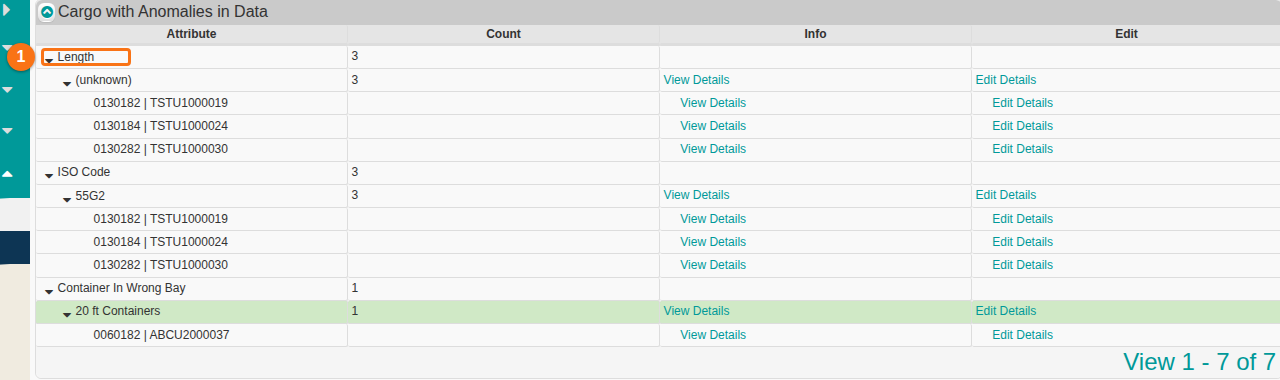
- Open a category: in Cargo with Anomalies in Data, click the small black triangle next to a category name, for example Length (1 in the picture). A short reason for the possible error shows (for example
(unknown)). The containers with the anomaly show below it, as position and container number.
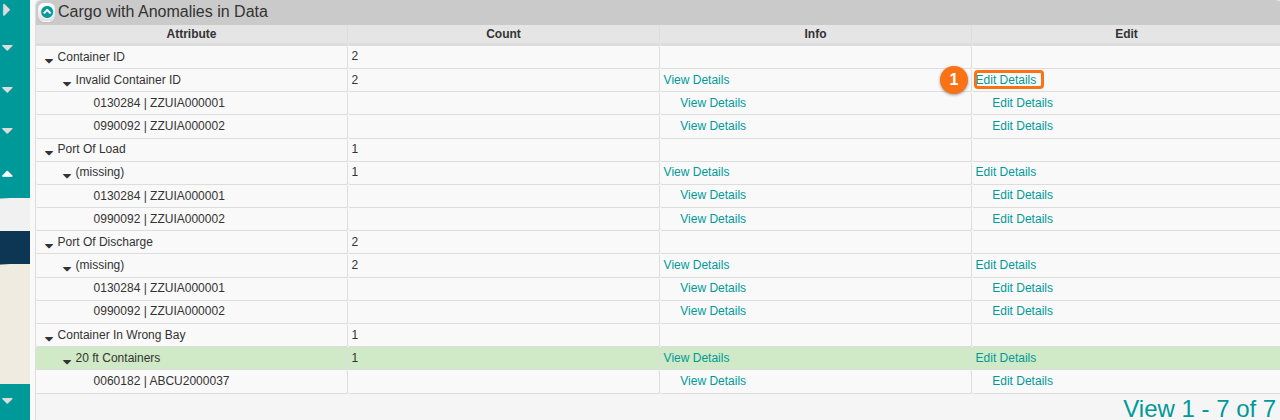
- Choose how to edit. Open a category. Then click Edit Details in the Edit column:
- On the row that names the problem, for example Invalid Container ID (1 in the picture). This changes all records listed under it.
- On one container row. This changes only that record.
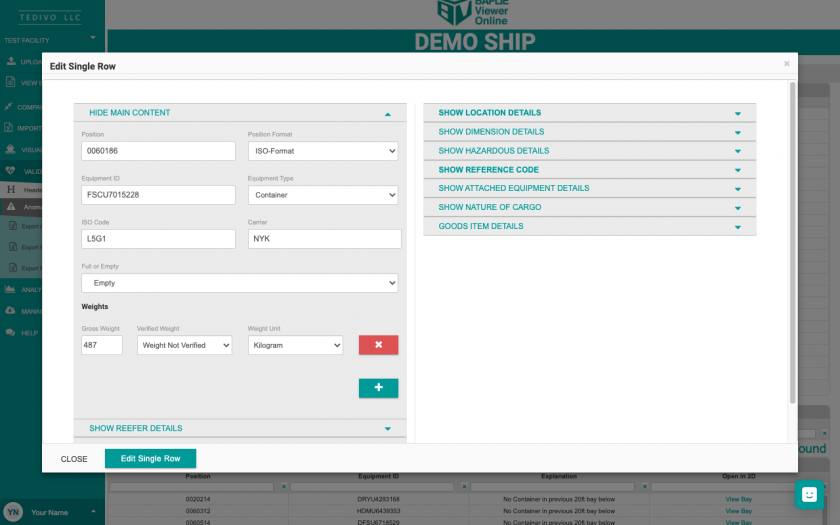
Edit one record
Section titled “Edit one record”- Click Edit Details on the row of the container. A window opens.
- Change the value. For example, enter a new weight.
- Click Edit Single Row to save.
Edit many records at once
Section titled “Edit many records at once”- Click Edit Details on the row that names the problem (not on a container row). The Editing Multiple Rows window opens.
- Tick the check box next to each field that you want to change for all records of this anomaly. For example, tick Weights (1 in the picture) and enter the new weight.
- Click Edit Multiple Rows (2). In the example, the weight changes for 14 records at once.
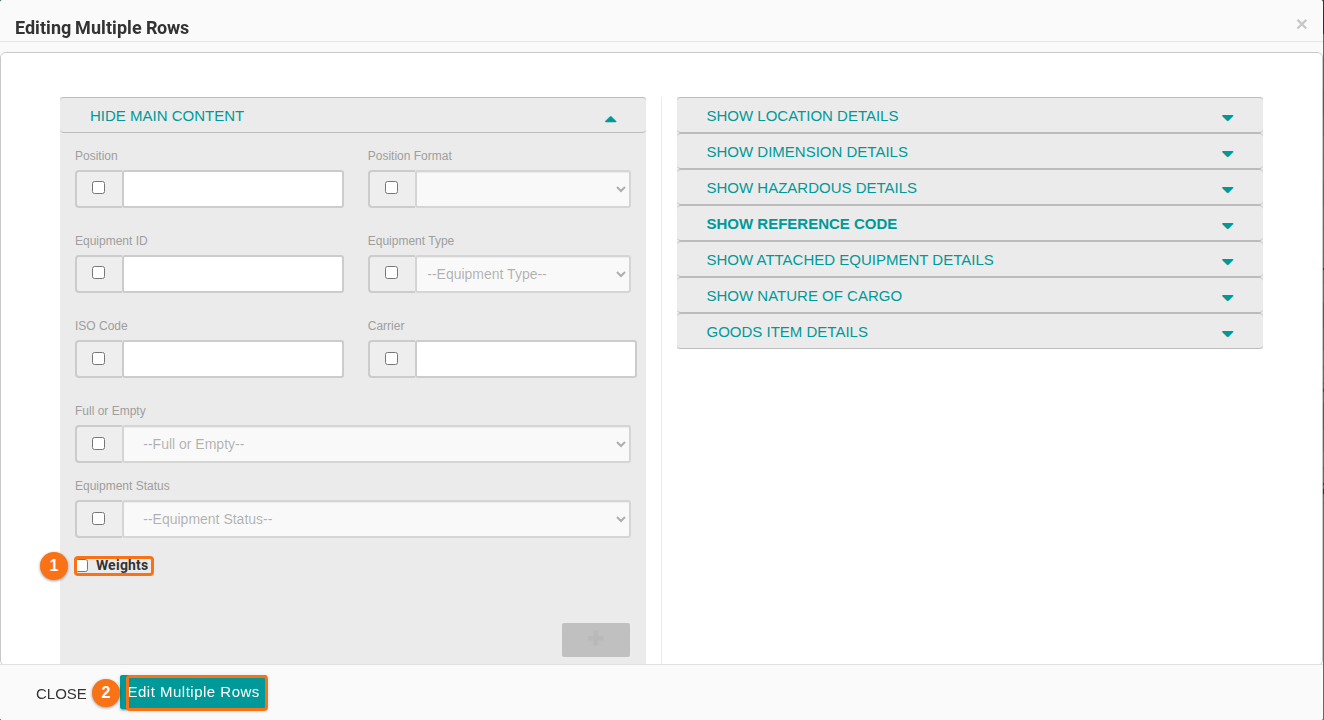
To cancel: click Close at the bottom left of the window. Nothing is saved.
Good to know
Section titled “Good to know”- Saving corrects the anomaly. It also updates the BAPLIE file, so the change shows when you view or download the file later.
- When you correct all anomalies, the Dashboard no longer shows Anomalies detected!.
- Click any row to highlight it.
- To see the rules that create each anomaly, read How to navigate the Anomalies option.