

How to find specific containers in 3D Vessel View
Use the search box in the 3D Vessel View to find one or more containers when you know their container numbers (IDs). You can paste a list of container numbers into the box.
Before you start: upload a file and open it.
- In the Function Menu on the left, open Visualization and click 3D Vessel View. The 3D data opens in a new window.
- Find the search box in the top right corner of the screen (orange frame in the picture). It shows Search…. You can use it in any Mode.
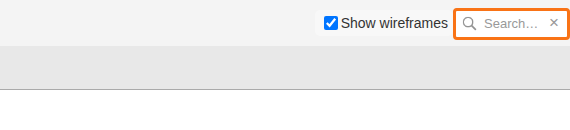
- Paste or type the container IDs you want to find. Then press the Enter key.
- Use the full container ID: the 4 letter prefix and the number after it.
- To search for several containers, put a space, a comma or a pipe (|) between the IDs.
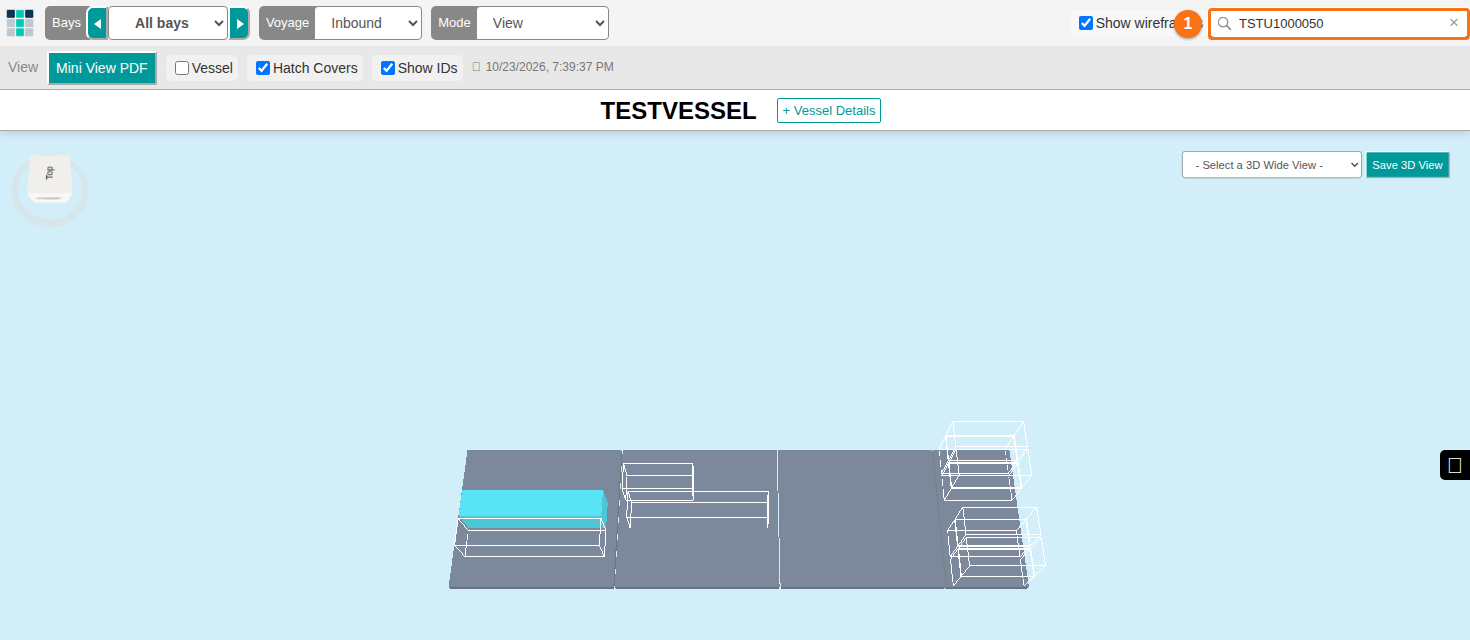
- The 3D view updates and shows your containers. In the picture, the search is for one ID (1 in the picture). Only that container is solid. The other containers are wireframes.
Note: if no container is found, a window shows the message “No containers match your search criteria”.
If you do not know the container numbers, click here to learn more about using the Filter Containers By option to find containers by specific attributes.