

How to display a realistic view of containers on a ship
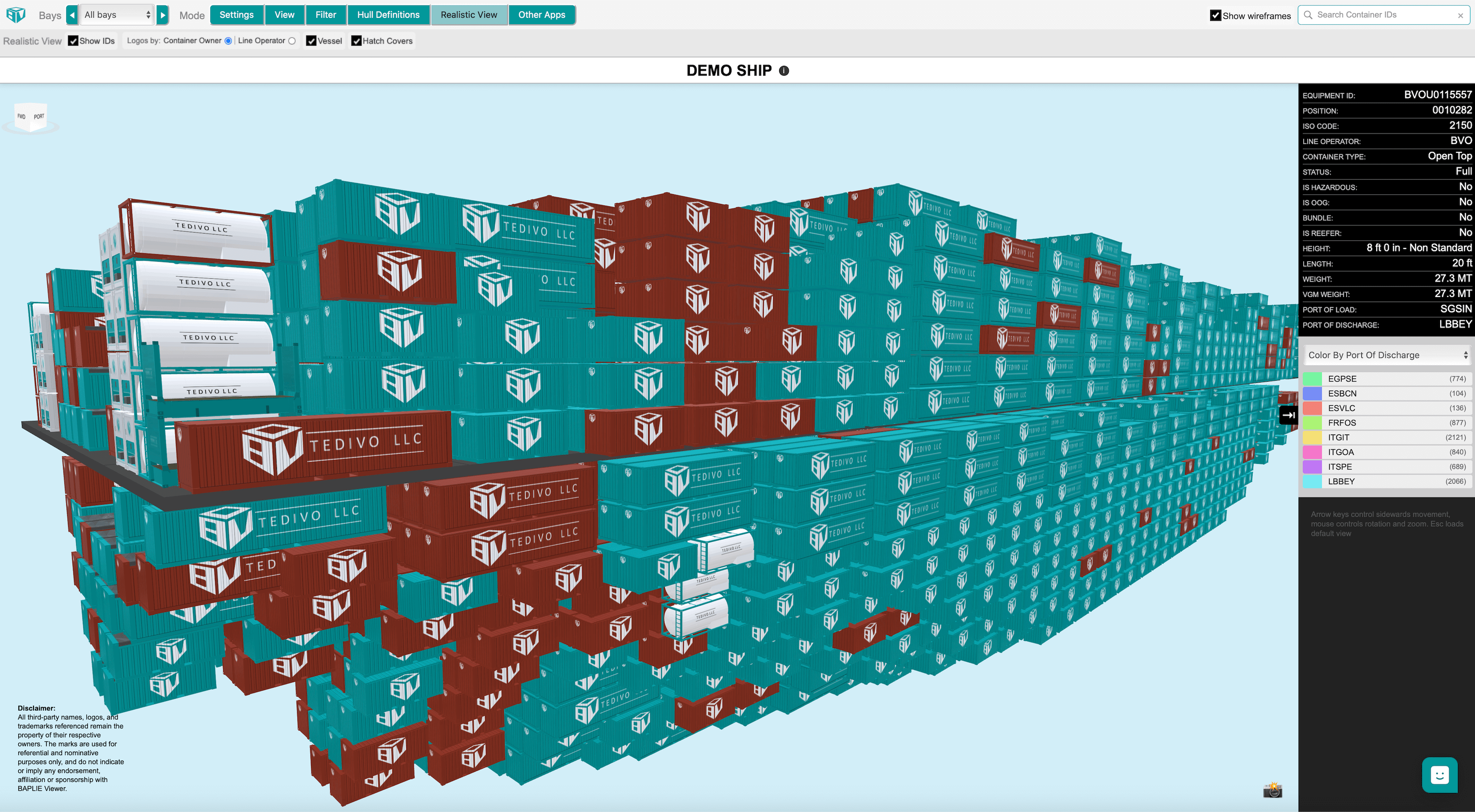
Use Realistic View to see a realistic model of the ship. The model uses data from the BAPLIE file to show containers with accurate colors and container owner logos.
Before you start: upload a file and open it. Realistic View is part of the 3D Vessel View. It needs a computer with a graphics card. See Good to know at the end of this guide.
- In the Function Menu on the left, open Visualization and click 3D Vessel View. The 3D data opens in a new window.
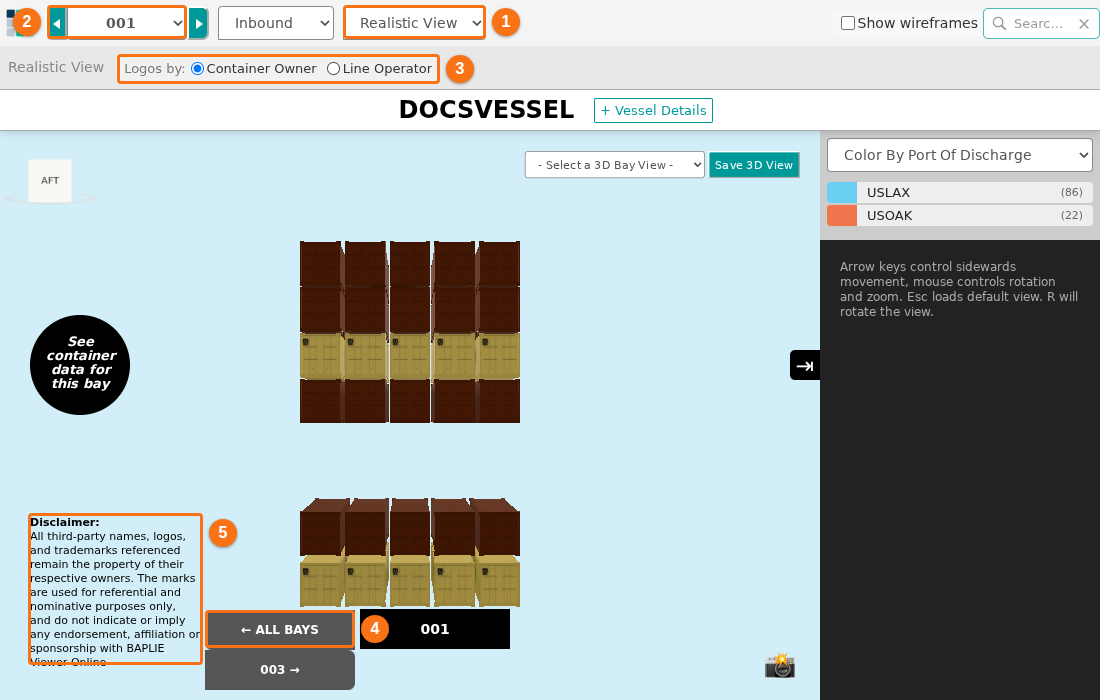
- In the menu bar at the top of the screen, change Mode to Realistic View (1 in the second picture). The vessel reloads. Each container now shows its real color and the logo of its owner. A disclaimer shows at the bottom left of the screen (5 in the second picture).
- To see one bay close up, choose a bay in the Bays list at the top of the screen (2 in the second picture). The bottom of the screen has the buttons ← ALL BAYS (4 in the second picture) and the number of the next bay, for example 003 →.
BAPLIE Viewer Online uses a master list of container types, sizes and owners. It shows each container type in its own way. This works for reefers (refrigerated containers), tanks, platforms, flat racks, open tops and standard containers.
Options in Realistic View
Section titled “Options in Realistic View”Use these options to change the model.
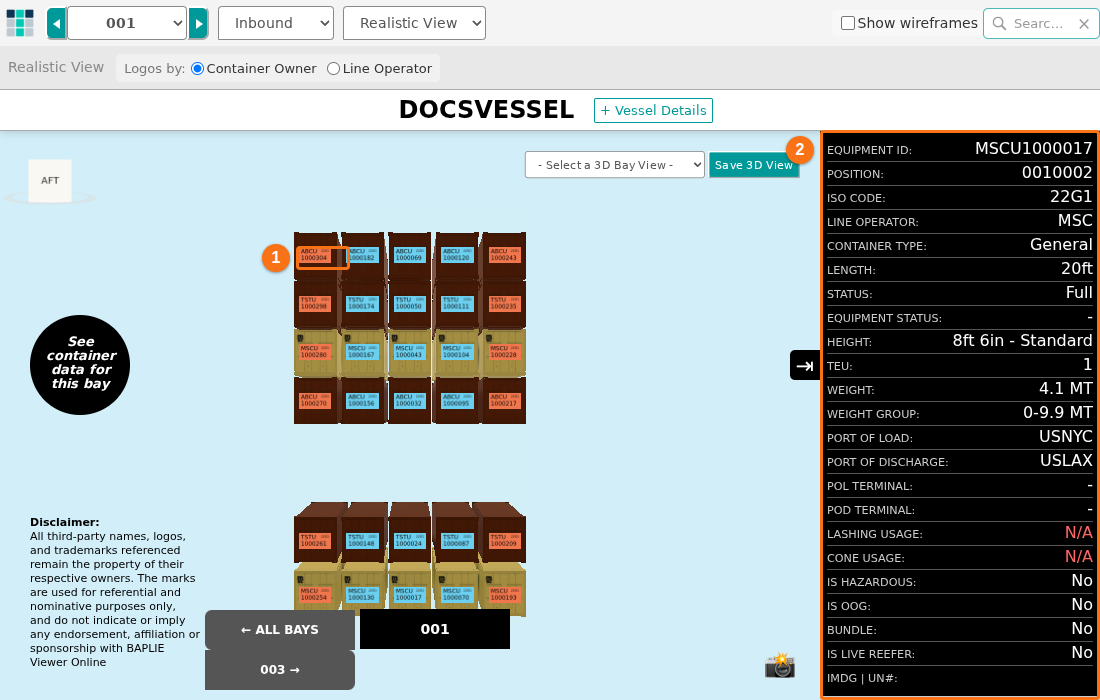
- Show IDs (checkbox under the top menu bar): shows or hides details such as the container ID and the ISO code (the container size and type code) on the forward (front) side of the container (1 in the third picture). The details use the colors of the Color By selection on the right side of the screen. To use a different attribute, choose it in the drop-down. The view updates by itself.
- Logos by (radio buttons, 3 in the second picture): choose Container Owner or Line Operator. The view updates by itself.
- Vessel (checkbox under the top menu bar): shows or hides the realistic ship skin.
- Hatch Covers (checkbox under the top menu bar): shows or hides the hatch covers.
- Show wireframes (checkbox in the top right corner): shows or hides the wireframes when you search for a specific container. You can set a filter in another 3D mode to show containers as wireframes. That filter is saved and also used in Realistic View.
When you look at one bay, the bar under the menu shows only Logos by. Show IDs, Vessel and Hatch Covers are in the bar of the other 3D modes. The container details panel on the right side shows the data of one container (2 in the third picture).
If a container does not look right
Section titled “If a container does not look right”Sometimes a container does not show the right color and logo. Send an email to Support. Give the container prefix and describe how the container should look. Our support staff can then define these containers, so they look more realistic in the future.
Any details about the container types are helpful. Send a picture of the real container, for example a reefer, tank, open top, flat rack or platform.
Good to know
Section titled “Good to know”- Realistic View needs a computer with a graphics card. The application checks how fast your computer can draw the picture. On a slow computer, a window shows This mode is demanding on computer resources and can’t be launched on this computer. Click Close (1 in the picture).
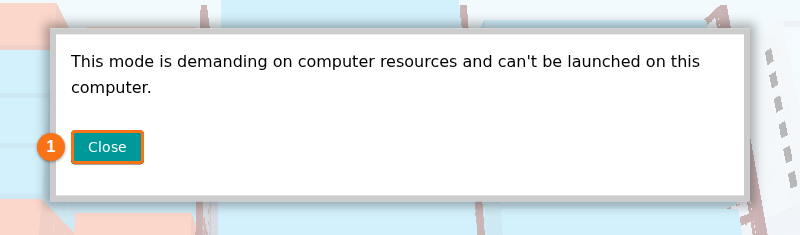
- To try again, use a computer with a graphics card (GPU) and an up-to-date browser. A smaller browser window and one bay (instead of All bays) put less load on the computer.
- The disclaimer on the screen says that all third-party names, logos and trademarks belong to their owners. The application uses them only to show the containers.