

How to manage allowed domains for your facility
Use this guide to set which email domains people can use to join your facility. A domain is the part of an email address after the @ sign. The rules apply to all new users.
Before you start: you must be the main user or an administrator of the facility.
- Log in to baplieviewer.com. The home page opens with the Function Menu on the left.
- Click Manage Facility under your facility’s name.
- Click Allowed Domains. The page opens.
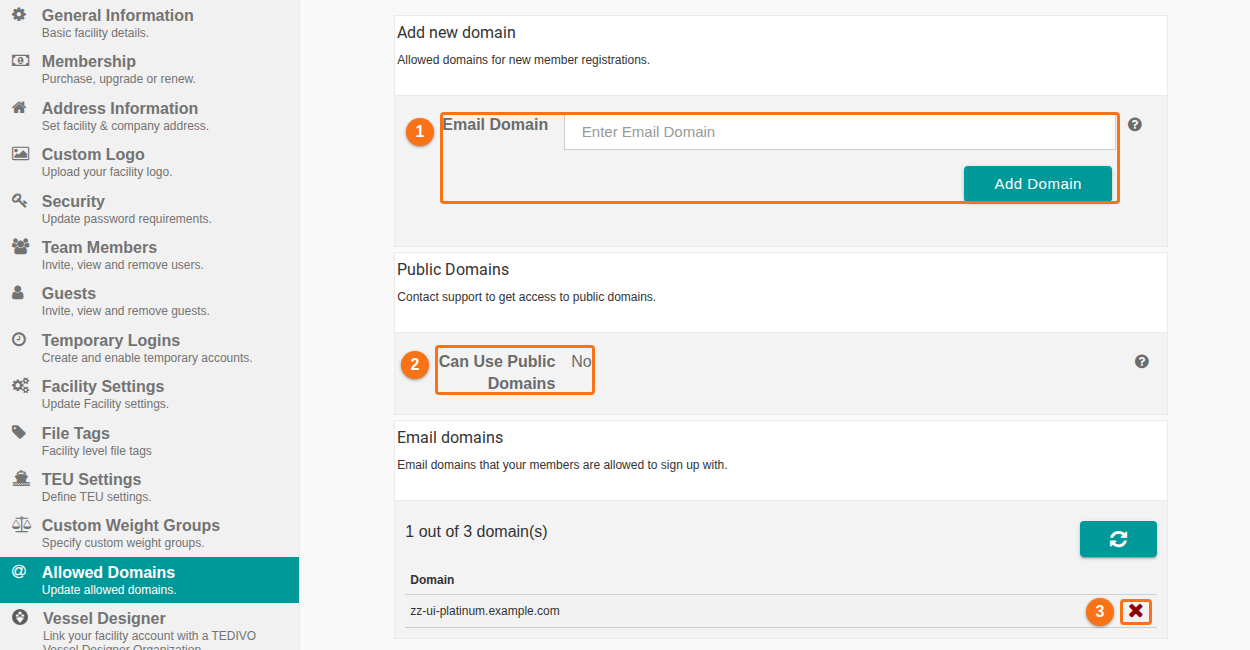
When you invite a new user, the person must create an account with an allowed email domain. Then the system confirms that the person belongs to your facility.
Add a domain
Section titled “Add a domain”- In the Add new domain section (1 in the picture), enter the domain in the Email Domain box.
- Click Add Domain. The domain is added to the list of allowed domains for new member registrations.
Public domains
Section titled “Public domains”Can Use Public Domains (2 in the picture) shows No. Users cannot join your facility with a public domain, for example a gmail.com address. To allow public domains for users, contact Support.
You can use public domains for guest accounts. Guests have View Only access. This is for people who do not belong to your facility and have no allowed domain. For more information, see the Guests guide.
See and remove allowed domains
Section titled “See and remove allowed domains”The Email domains section (3 in the picture) lists all allowed domains of your facility. To remove a domain, click the red X next to it.
Note: after you remove a domain, new users cannot join your facility with that domain.