

How to use Hazards View and print hazardous cargo in the 2D Bay View
Use this guide to show dangerous goods (hazardous cargo) in the 2D Bay View and to print a PDF of the bays with hazardous cargo. Hazards View colors the containers by IMDG class (the International Maritime Dangerous Goods class) and shows the IMDG class and the UN number on each hazardous container.
Before you start: open your file in the 2D Bay View. See How to navigate the 2D Bay View.
Turn on Hazards View
Section titled “Turn on Hazards View”- In the Mode list at the top, choose View. The row below the menu bar shows the buttons and two check boxes.
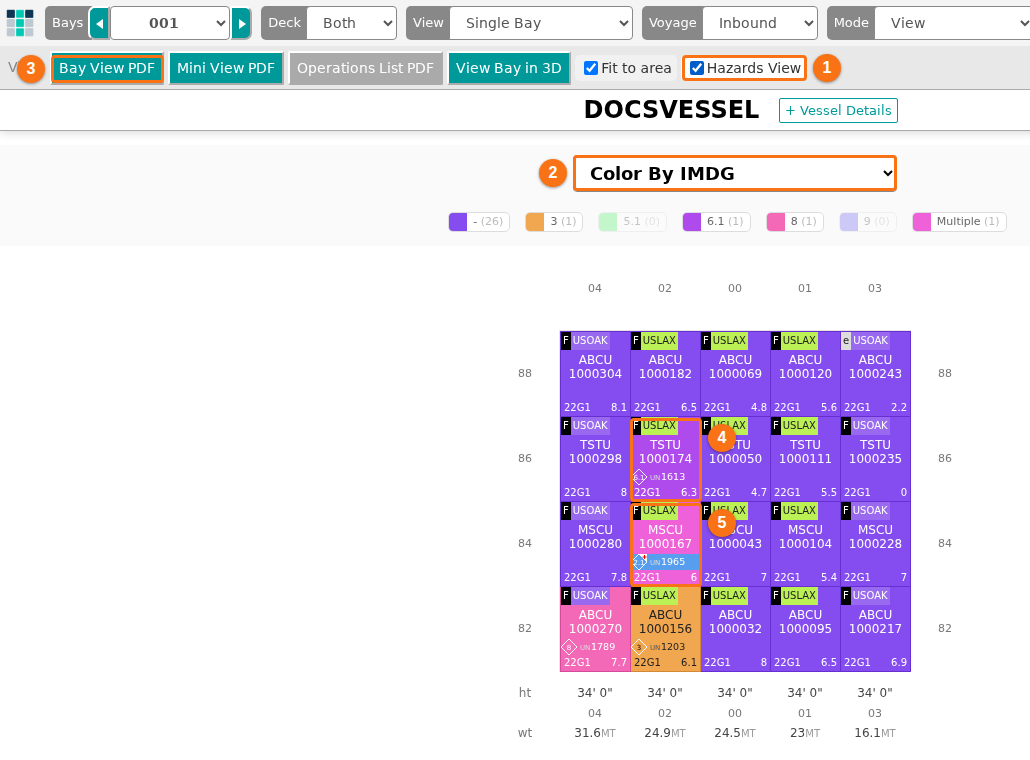
- Click the Hazards View check box (1 in the picture).
- Look at the Color By list (2 in the picture). It now shows Color By IMDG. The legend lists the IMDG classes and Multiple, with the number of containers for each. The first entry, a dash, is for containers without an IMDG class. The containers get the colors of the legend.
- Look at the containers in the bay. Each container with hazardous cargo shows its IMDG class in a diamond and its UN number at the bottom left (4 in the picture), for example UN1613.
- A container with more than one hazard has a red + sign at its diamond and the color of Multiple (5 in the picture). The picture shows the first hazard of this container.
To go back to the normal view, click the Hazards View check box again. The Color By list returns to your earlier choice.
Print the bays with hazardous cargo
Section titled “Print the bays with hazardous cargo”- Make sure that Hazards View is ticked.
- Click Bay View PDF (3 in the picture above). The Bay View PDF window opens with the text Please select the document options.
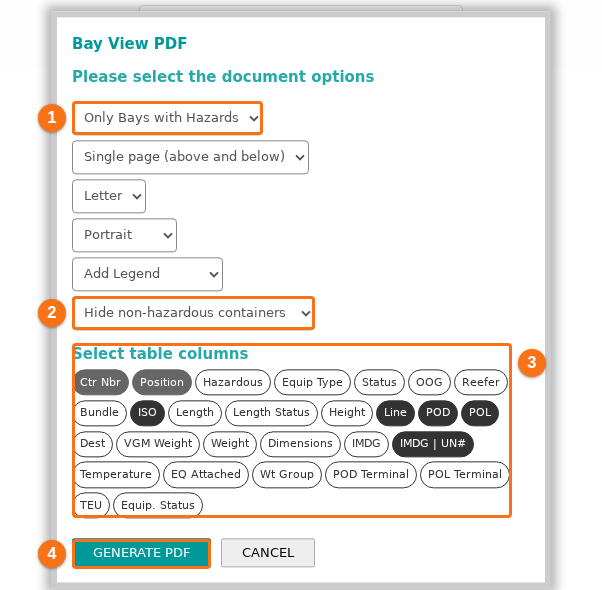
- In the first list, choose which bays to print (1 in the second picture):
- Current Bay – only the bay on the screen.
- All Bays – every bay.
- Only Bays with Hazards – only the bays that have hazardous cargo. This choice shows only when Hazards View is ticked.
- Choose how to show the other containers (2 in the second picture):
- Show non-hazardous containers – the PDF shows all containers.
- Hide non-hazardous containers – the PDF shows only the containers with hazardous cargo.
- Under Select table columns, choose the columns for the table of hazardous cargo (3 in the second picture). Click a button to add the column or to remove it. The dark buttons are on. You can choose up to 8 columns in all. The container ID (Ctr Nbr) and the position are always in the table. IMDG | UN# is on for you.
- Choose the other options in the lists: the pages (Single page (above and below) or Separate pages per deck), the paper size (Letter, Legal, A4 or A3), Portrait or Landscape, and Add Legend or Don’t Add Legend. If your facility has a logo, you can also choose Add Logo.
- Click GENERATE PDF (4 in the second picture). The window shows Generating pages, please wait….
- When the PDF is ready, click Download PDF. Click OK to close the window.
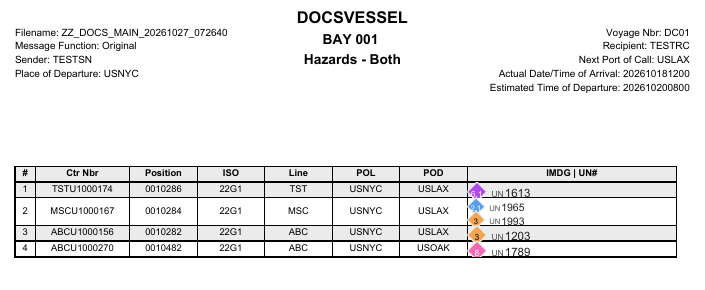
- Open the PDF. After the plan of a bay, a page shows a table with the hazardous cargo of this bay. The page title has the bay and the word Hazards, for example BAY 001 and Hazards - Both. The table has one row for each container with the columns that you chose. The column IMDG | UN# lists every IMDG class and UN number of the container. A container with two hazards has two entries.
Change what the container shows
Section titled “Change what the container shows”You can also use these settings without Hazards View:
- Bottom Left Text: choose Settings in the Mode list. Click Customize Info. Set Bottom Left Text to IMDG | UN.
- IMDG class colors: choose Settings in the Mode list. Click Customize Container Colors. Choose IMDG Classes and change the color of each class. Your colors are saved to your user profile. See How to customize colors used for containers in 2D Bay View.
Good to know
Section titled “Good to know”- The Mini View PDF window also has the list Show non-hazardous containers or Hide non-hazardous containers when Hazards View is ticked. See How to print or download the full bay plan in 2D Bay View.
- If a container has more than one IMDG value, the IMDG value shows as Multiple. In the Main Content table, the filter of the Is Hazardous column has the choices Yes, No and Multi. See How to view Hazardous and IMDG information in the BAPLIE file.
- To download a BAPLIE file that keeps container numbers only for hazardous cargo, see How to download a BAPLIE without container numbers except hazardous.