

How to print a specific bay in 2D Bay View
Use this guide to print one bay, or several bays, as a PDF or on paper. You use the Bay View PDF button in 2D Bay View.
Before you start: open your file.
- After you upload a file on baplieviewer.com, open Visualization in the Function Menu on the left. Click 2D Bay View. The screen shows the vessel bay by bay.
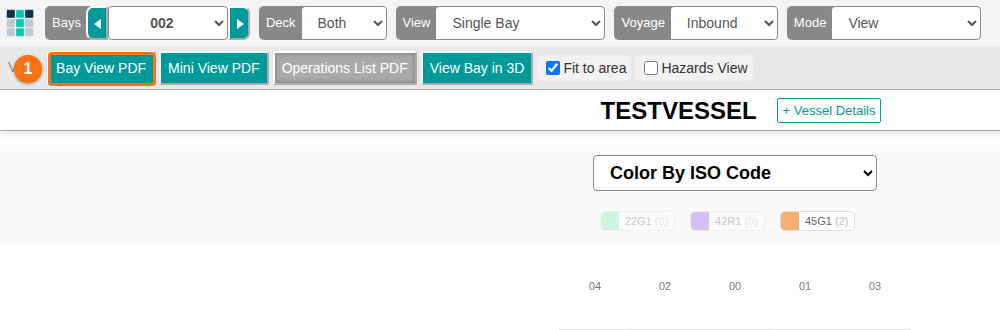
- Look at the menu bar at the top. The first bay of the file shows, and Mode is View. The buttons below the top bar include Bay View PDF.
- Click Bay View PDF (1 in the picture).
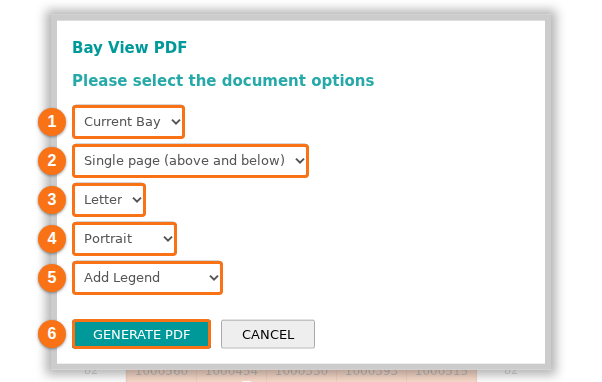
- The Bay View PDF window opens with the text “Please select the document options”. Choose your options in the five lists (1 to 5 in the picture):
- The bays to print: Current Bay (the bay on the screen) or All Bays.
- The pages: Single page (above and below) or Separate pages per deck.
- The paper size, for example Letter.
- The paper orientation: Portrait or Landscape.
- The legend: Add Legend or Don’t Add Legend.
- Click GENERATE PDF (6 in the picture).
- Wait while the system makes the PDF. The window shows Generating pages, please wait… and the progress in percent.
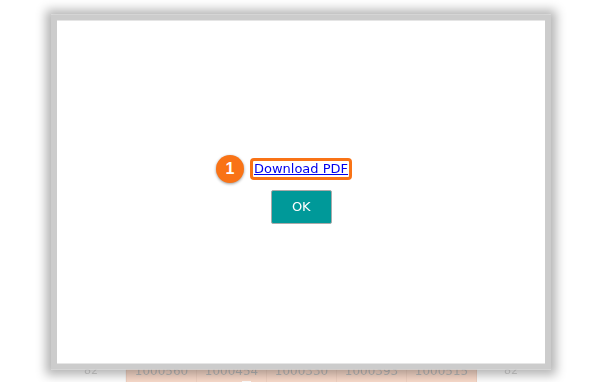
- Click Download PDF (1 in the picture). Click OK to close the window.
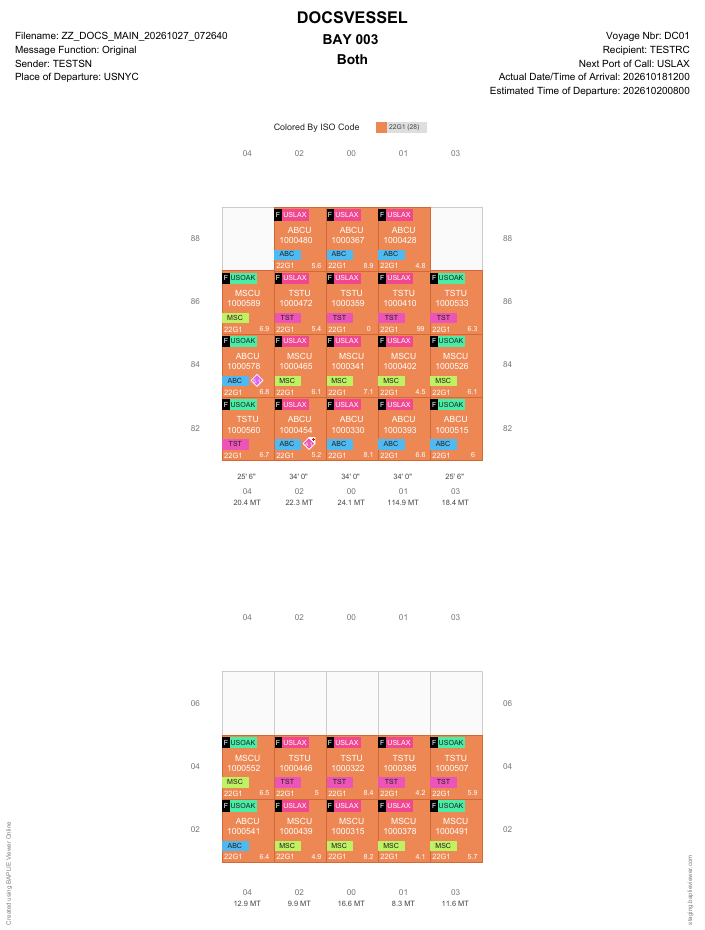
- Open the PDF that you downloaded. It looks like this picture. The top shows the vessel name, the bay number, the deck and the voyage details. Single page (above and below) puts the containers above deck and below deck on one page.
Note: to make a PDF of the whole vessel instead of one bay, click Mini View PDF. For more information, click here to learn how to print the full bay plan.