

How to use the Home page
Use the Home page to find and open your BAPLIE files. You can see your most recent files, search the list, group the files, and find a container in all your files.
Before you start: log in to BAPLIE Viewer Online. If your Home page shows a calendar and a weekly vessel list, you have the older design. See How to use the Calendar View functionality.
- In the Function Menu on the left, click Home. It is the first entry under the name of your facility. The Home page opens.
- Look at the page. It has these parts:
- Recent files (1 in the picture): the files that changed most recently.
- The search box (2 in the picture) and the Find container button (3 in the picture).
- The Group by list (4 in the picture).
- The tabs (5 in the picture), when you group by Tag or Inbound / outbound. In the picture, the page is grouped by Tag.
- The list of your files, with an Open button (6 in the picture) for each file.
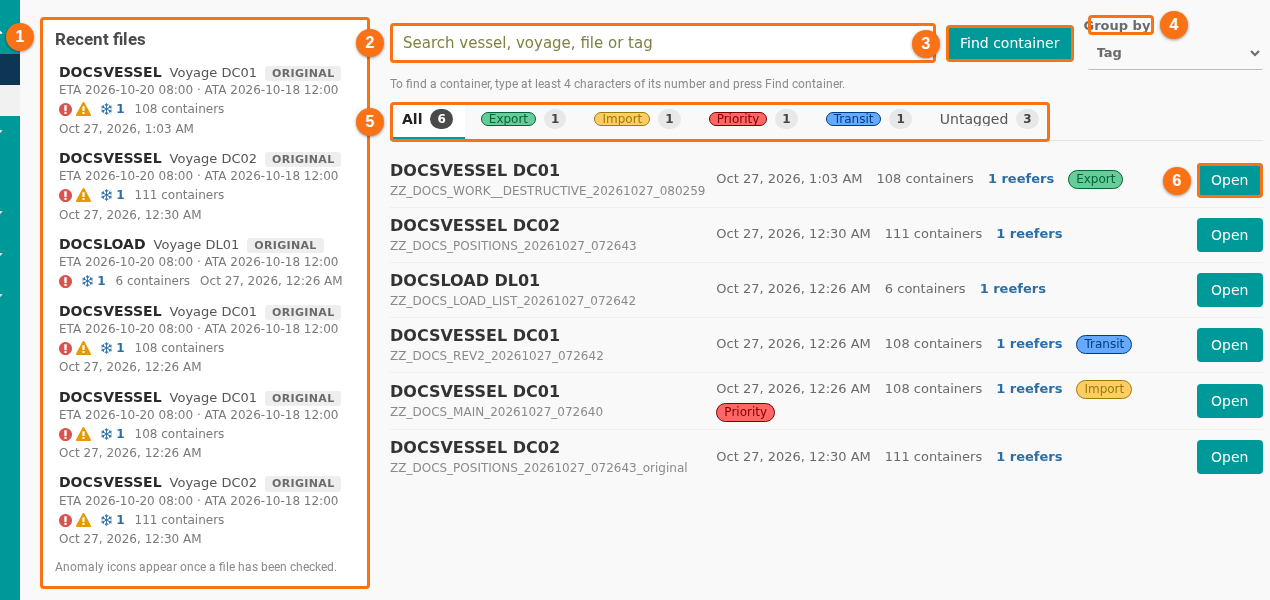
- To open a file, click Open. You can also click a file in Recent files. The file opens in the viewer.
Read the Recent files list
Section titled “Read the Recent files list”Recent files shows the 8 files that you uploaded or changed last. Each entry shows:
- The vessel name and the voyage.
- A grey label with the message function of the file, for example ORIGINAL or FINAL.
- The dates ETA, ETD, ATA and ATD (estimated and actual arrival and departure). If the file has none, the entry says No ETA / ETD / ATA / ATD in this file.
- A red circle when the file has anomalies that are errors. An amber triangle shows anomalies that are warnings. Both show when the file has both. A spinning circle means the application is still checking the file. The note Anomaly icons appear once a file has been checked. explains this.
- A snowflake and a number: the number of live reefers (refrigerated containers that are plugged in).
- The number of containers and the date and time of the last change.
- Deleted in N day(s) or Deleted today: this shows when the file will be deleted in 3 days or less.
Search the file list
Section titled “Search the file list”- Click the search box. It says Search vessel, voyage, file or tag.
- Type part of a vessel name, a voyage, a file name or a tag. The list changes while you type.
- If no file matches, the page says No files match your search.
To see all files again, delete the text in the box.
Group the file list
Section titled “Group the file list”- Open the Group by list.
- Choose one of the options:
| Option | What you see |
|---|---|
| Voyage | One card for each vessel and voyage. The card shows the newest file. Older files of the same voyage are under N earlier revision(s). |
| Tag | One tab for each tag. See How to use file tags. |
| Inbound / outbound | One tab for Inbound and one for Outbound. Files with no direction are under Not specified. |
| None | One flat list of all files, the newest first. |
When you group by Tag or Inbound / outbound, the tabs show a number: the number of files in each tab. The first tab is All. Files with no tag are in the tab Untagged. Click a tab to see its files. The page remembers the last tab that you used. You can also use the left and right arrow keys to move between tabs.
At first, the page groups by Tag if you can see any file with a tag. Otherwise it groups by Voyage. When you choose a group yourself, your browser remembers it.
Work with the revisions of a voyage
Section titled “Work with the revisions of a voyage”When you group by Voyage, each card shows one voyage. A file that you changed or uploaded again is a new revision.
- Look at the card. It shows the vessel, the voyage, Inbound or Outbound, the tags, the date of Last edited, the number of containers and the number of reefers.
- A small number on the card, for example -2, is the change in the number of containers: the newest file compared with the file before it. A minus sign means fewer containers.
- Click N earlier revision(s). The older files show under the card. Click Hide earlier revisions to close the list.
- Click Compare with previous. The Compare Files page opens with the newest file and the file before it. See How to compare two BAPLIE files.
- Click Open to open the newest file, or the Open button of an older file to open that file.
Find a container in your files
Section titled “Find a container in your files”Use Find container when you know a container number but not the file.
- Click the search box and type at least 4 characters of the container number. You can type up to 15 letters and digits. Do not type spaces or other signs.
- Click Find container (3 in the first picture of this guide), or press the Enter key.
- The page shows the panel Container … is in. It lists the files that have a container whose number starts with your text. Each file shows the number of matches, for example 9 match(es).
- Click Open to open a file from the list.
- Read the line under the list. It says, for example, Searched 6 of 6 files, most recent first. The search reads at most 40 files, starting with the newest. If it did not read all files, search again with more characters.
- Click Clear to close the panel.
If the text is too short or has other signs, the page says Use 4 to 15 letters or digits. If no container matches, it says No container starting with … was found.
Good to know
Section titled “Good to know”- The Enter key starts Find container only when the text has 4 to 15 letters or digits and at least one digit. Letters only: click Find container.
- The list shows your own files and the files shared with your facility. A guest sees only the files that were shared with the guest.
- When you have no files, the page says No files yet. and has a link Upload a BAPLIE. A user with the permission View Only - no uploads does not see this link.
- Need help? See How to contact Support and create a support ticket.